
Calls to PDF – Export & Backup PC
Mohammed Malhas
Download Calls to PDF – Export & Backup on PC With GameLoop Emulator
Calls to PDF – Export & Backup on PC
Calls to PDF – Export & Backup, coming from the developer Mohammed Malhas, is running on Android systerm in the past.
Now, You can play Calls to PDF – Export & Backup on PC with GameLoop smoothly.
Download it in the GameLoop library or search results. No more eyeing the battery or frustrating calls at the wrong time any more.
Just enjoy Calls to PDF – Export & Backup PC on the large screen for free!
Calls to PDF – Export & Backup Introduction
Calls to PDF – Export & Backup
Welcome to the ultimate call log exporter and backup app!
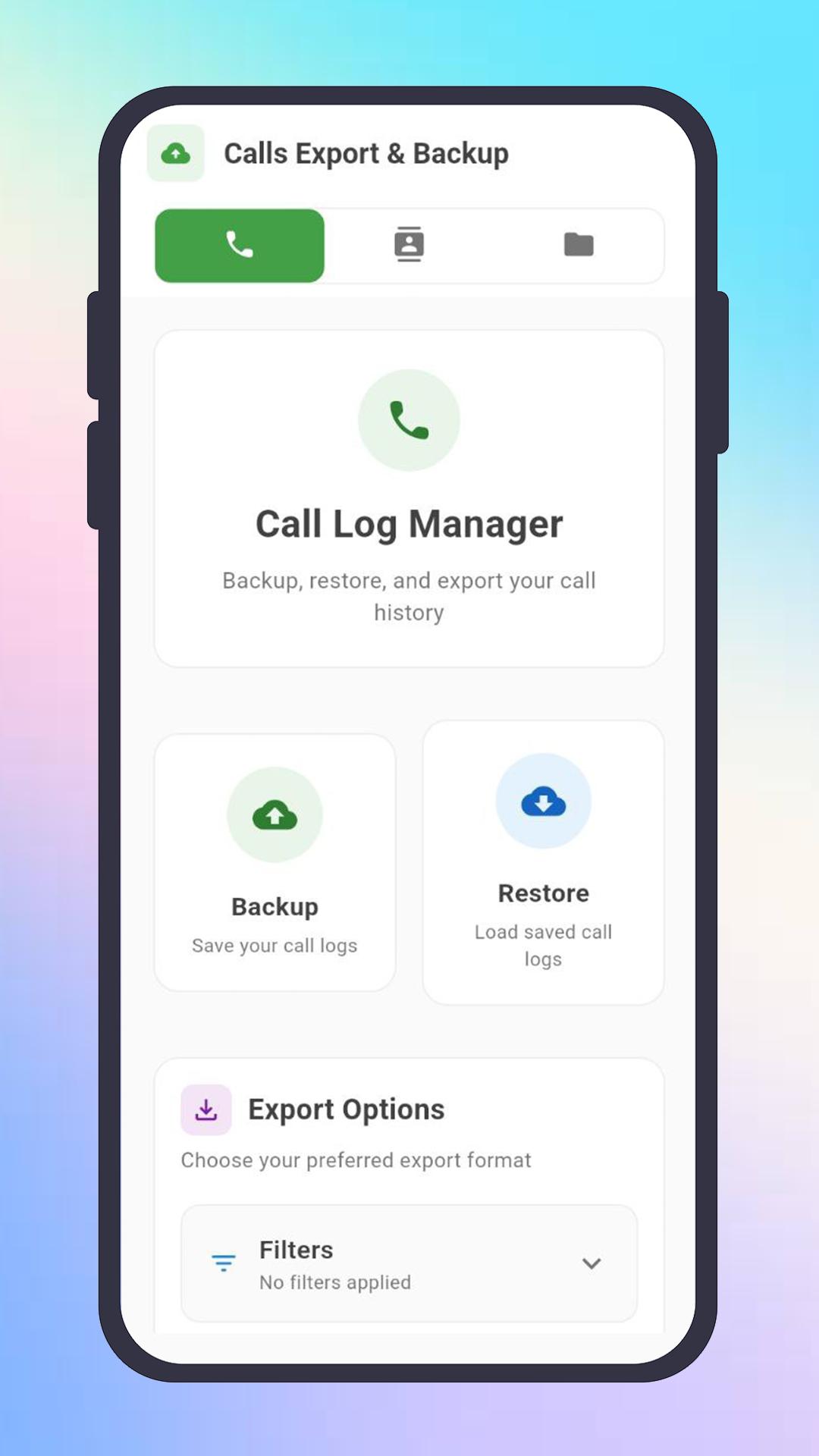
Effortlessly manage, export, backup, and restore your call history and contacts in just a few taps.
Export your call logs and contacts to PDF, CSV, TXT, XLS and JSON—keep your important records safe, organized, and always within reach.
✦ Export Features You’ll Love
• Export Calls and Contacts Instantly:
Export your entire call history or contacts list in the format you need—PDF, CSV, TXT, and JSON!
Share exported files for reporting, record-keeping, or switching devices.
Easily use exported files for documentation, business, or sharing with colleagues and friends.
• Powerful Call Log Exporter:
Export call logs as PDF for easy reading and printing, or export as CSV, TXT, or JSON for more advanced use and analysis.
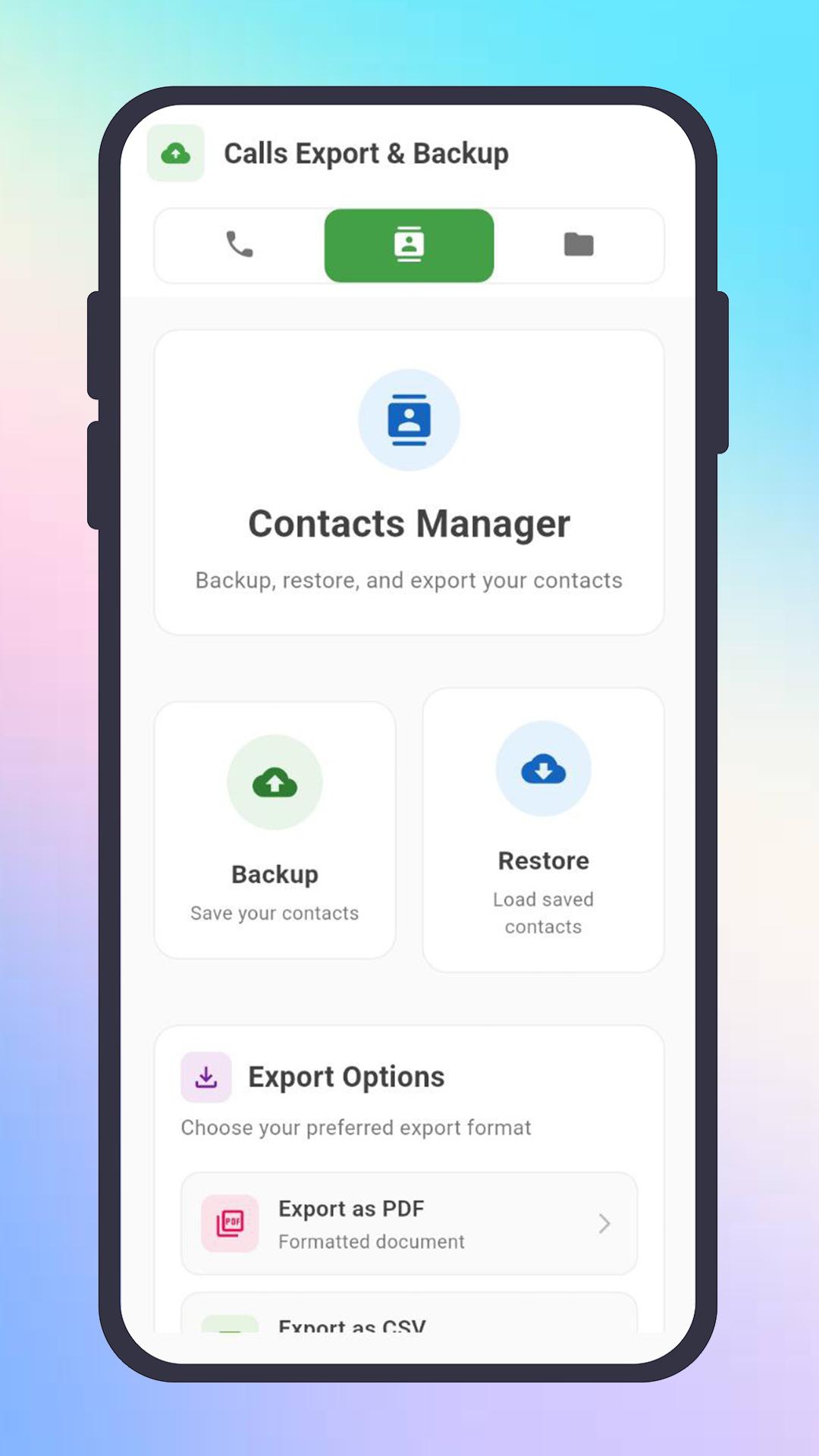
• Contacts Exporter Built In:
Export your contacts as PDF for archiving, or use CSV, TXT, and JSON formats for importing into other apps or sharing with other platforms.
✦ Backup & Restore Made Simple
• One-Click Backup:
Backup your call logs and contacts securely in seconds.
Never worry about accidental deletion—restore your history anytime with just a tap.
• Easy Restore:
Restore deleted or lost call history and contacts from your saved backups.
Simply choose your .bak backup file and bring back your data in moments.
✦ Preview, Share & Manage Exports
Preview All Exports:
Instantly preview your exported PDF, CSV, TXT, or JSON files before sharing or saving.
Seamless Sharing:
Share your exports via email, messaging apps, or upload to cloud storage—right from within the app.
My Exports Page:
Find all your exported files and backups in one place—either in the “My Exports” section or your device’s Downloads folder.
Copy, Share, or Manage:
Each backup or export file can be easily copied, previewed, or shared with just a tap. Keep your call history and contacts organized and accessible.
✦ Designed for Every User
• Dual SIM Support:
Works flawlessly on both single and dual SIM devices, so you never lose any call data.
• User-Friendly Interface:
Simple, intuitive design makes it easy for anyone to export, backup, and restore call logs and contacts.
• Safe and Private:
Your data never leaves your device unless you choose to export or share it.
Enjoy complete peace of mind with privacy and security built-in.
✦ How to Use: Step-by-Step
How to Export Calls or Contacts
Open the app and grant permissions.
Tap “Export” and select PDF, CSV, TXT, or JSON as your export format.
Preview your exported file and share, save, or print as needed.
How to Backup Call Log (Call History)
Open the application and accept permissions.
Click the “Backup” button.
Find your backup in your device’s Downloads folder or “My Exports” page.
Share or keep your backup file in a safe place.
How to Restore Call Log
Open the app and accept permissions.
Click the “Restore” button.
Select your .bak backup file.
Click “Restore” to recover your call history instantly.
How to Backup & Restore Contacts
Switch to the Contacts tab.
Tap “Backup” to save a .bak file of your contacts.
Tap “Restore” any time and select the backup file to recover your contacts.
How to Export Calls as PDF?
After granting permissions, tap “Export as PDF.”
Wait a few seconds to be redirected to the preview page.
Use the share button to send or save your PDF export.
Important Notes
Only files created via the “Backup” button are restorable.
Exported files (PDF, CSV, TXT, JSON, XLS) are for sharing, reporting, and reference—not for restoration.
Don’t try to restore from a PDF export; use your backup (.bak) file for recovery.
Your Call & Contact Data, Always Safe
• Recover deleted call logs instantly with regular backups.
• Export your call logs and contacts in the format you need—PDF, CSV, TXT, or JSON—whenever you need it.
• Store, share, or print your call history with one tap.
• Manage all your exported files and backups in one place.
Preview
Tags
ToolsInformation
Developer
Mohammed Malhas
Latest Version
2.0.0
Last Updated
2025-08-05
Category
Tools
Available on
Google Play
Show More
How to play Calls to PDF – Export & Backup with GameLoop on PC
1. Download GameLoop from the official website, then run the exe file to install GameLoop
2. Open GameLoop and search for “Calls to PDF – Export & Backup” , find Calls to PDF – Export & Backup in the search results and click “Install”
3. Enjoy playing Calls to PDF – Export & Backup on GameLoop
Minimum requirements
OS
Windows 8.1 64-bit or Windows 10 64-bit
GPU
GTX 1050
CPU
i3-8300
Memory
8GB RAM
Storage
1GB available space
Recommended requirements
OS
Windows 8.1 64-bit or Windows 10 64-bit
GPU
GTX 1050
CPU
i3-9320
Memory
16GB RAM
Storage
1GB available space