Tranquil for Kustom KLWP PC
BaconBits
Download Tranquil for Kustom KLWP on PC With GameLoop Emulator
Tranquil for Kustom KLWP on PC
Tranquil for Kustom KLWP, coming from the developer BaconBits, is running on Android systerm in the past.
Now, You can play Tranquil for Kustom KLWP on PC with GameLoop smoothly.
Download it in the GameLoop library or search results. No more eyeing the battery or frustrating calls at the wrong time any more.
Just enjoy Tranquil for Kustom KLWP PC on the large screen for free!
Tranquil for Kustom KLWP Introduction
YOU NEED TO HAVE THE PRO VERSION OF KUSTOM KLWP INSTALLED ON YOUR PHONE TO USE THESE WALLPAPERS - https://goo.gl/UkHJ99
This is a collection of six, three page, material design inspired live wallpapers created using the Kustom LWP Maker App
Instructions to add a new Wallpaper - Video - https://goo.gl/JJfVkM
• Download the Kustom app (if you don't already have it) from the Play Store and upgrade to Pro
• Download Tranquil for Kustom
• Open up Kustom tap the menu icon and select load preset
• Select Tranquil and select which setup you want
• Select 'Set Kustom as wallpaper and apply' then return to your homescreen
• Make sure dock is disabled in your launcher settings (Recommended for Nova or similar launcher)
• Enjoy
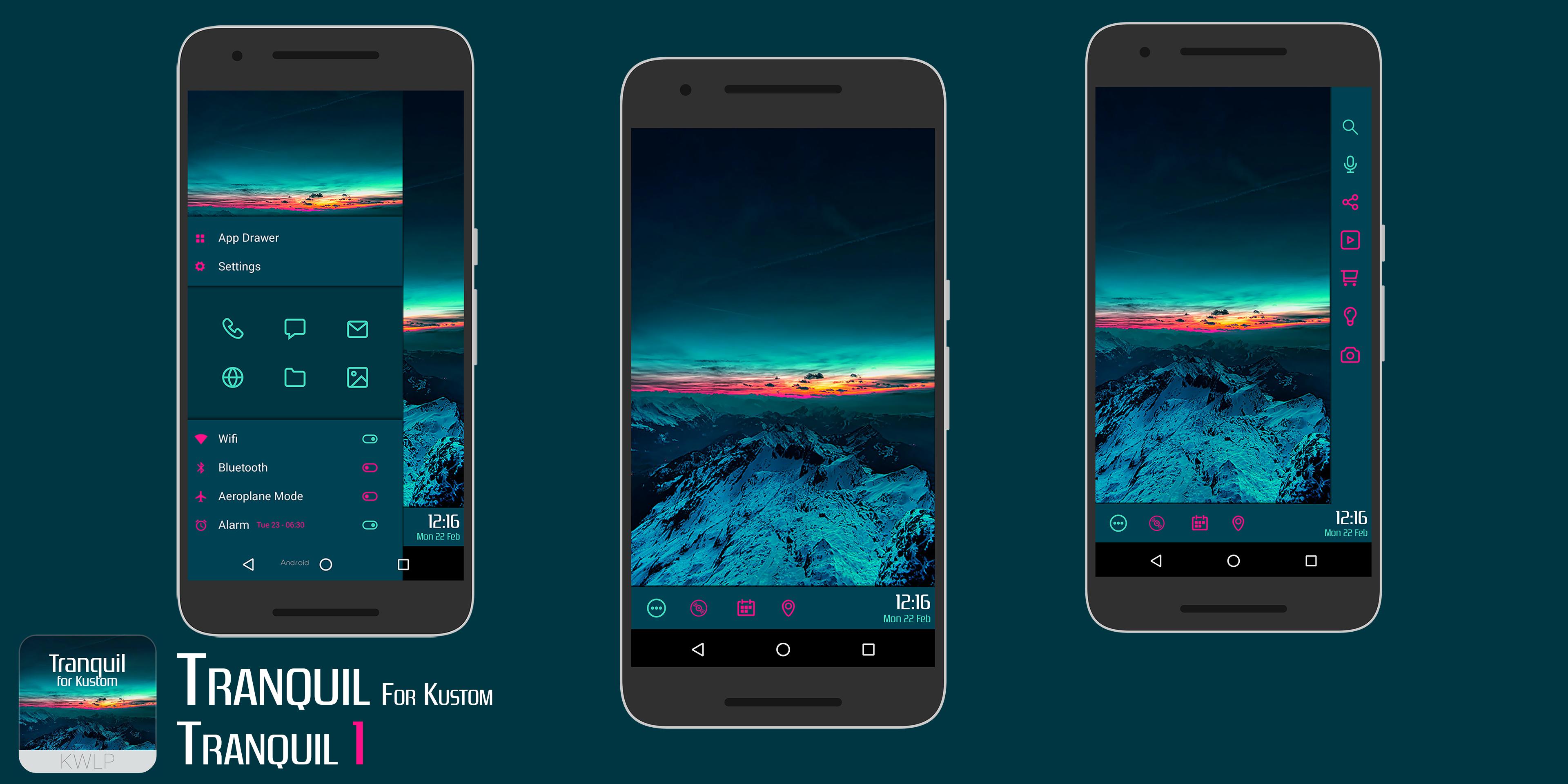
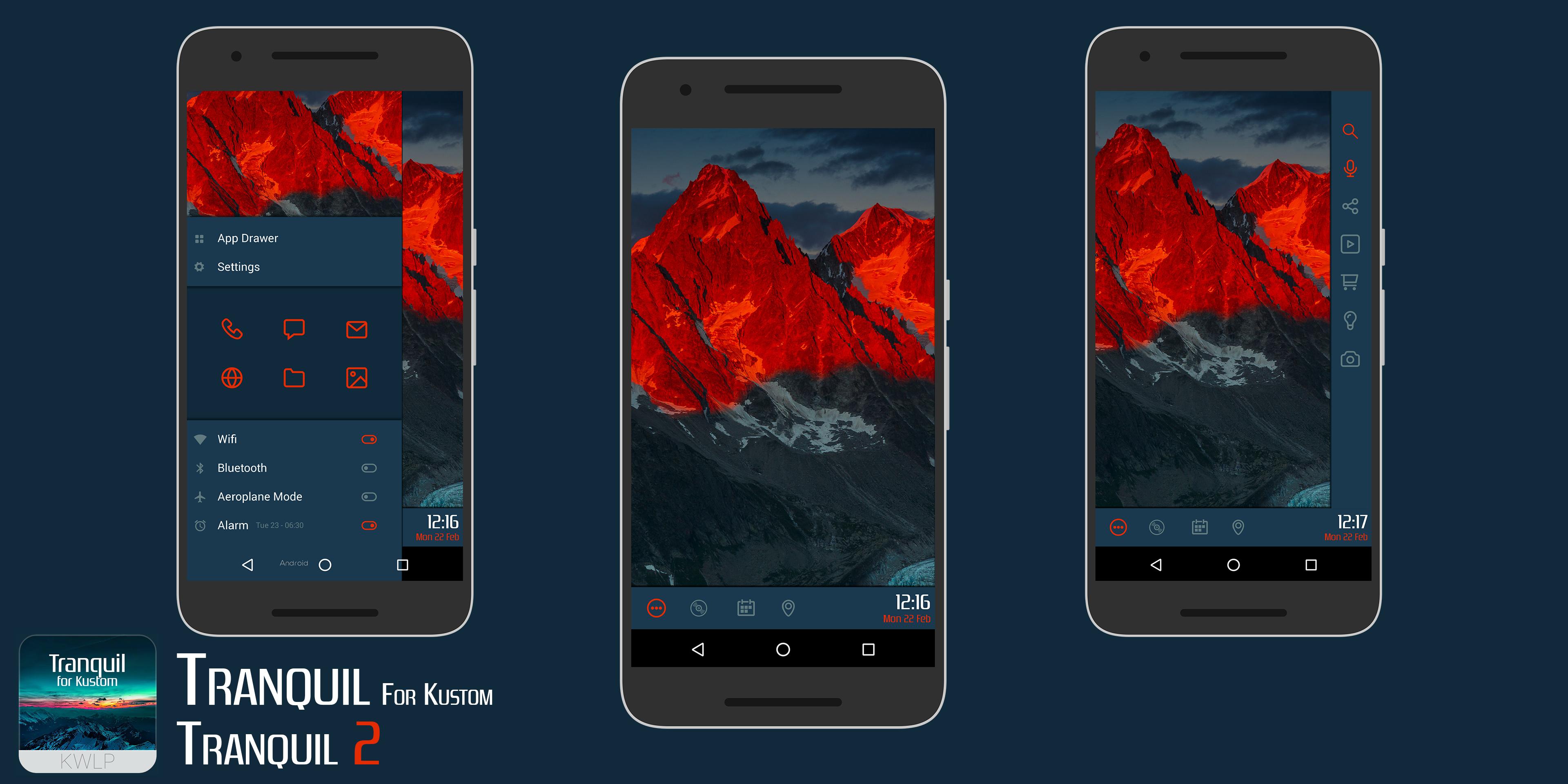
Screen 2 (Home Page)
Icons on dock for
- App Drawer (Nova)
- Popup Music Player
- Popup Events details
- Popup Map & Weather Info
Screen 1 (Scroll Left)
- Side bar with access to Apps and Toggles which display state of WiFi/Bluetooth/Airplane mode/Alarm (They will not switch on/off these features unless linked to a tasker task)
Screen 3 (Scroll Right)
- Small vertical bar with GNow & App icons/shortcuts
Check the globals menus in the root and the SideDrawer Komponent for extra editing options
CHANGING TOUCH ACTIONS FOR ICONS IN LARGE SIDE DARWER Video - https://youtu.be/X3h_Ht57F2M
Open the KLWP editor with a Tranquil preset loaded. At the bottom will be the 'Items' 'Background' 'Layer' etc tabs. Select the 'Items' tab and scroll down to the bottom and tap on 'SideDrawer'. Scroll down to the bottom and tap on SideDrawer HOTSPOTS. In this group is a bunch of transparent shapes which are placed over the icons and text in the SideDrawer fit the Touch actions. Scroll down to the bottom and you will find shapes labeled 'Phone', 'Gmail' 'SMS' etc etc. Tap on the one you wish to change and then select the 'Touch' tab. From here you can select a different app to open. Do the same for the others you wish to change as well. When done, tap the save icon and return to the homescreen
SIDEDRAWER TOGGLES
These toggles cannot be switched via KLWP, they only show if WiFi/Bluetooth/Airplane mode/Alarm are on or off
They are however set to tasker tasks via the Touch action. If you have tasker, import these tasks and pressing the toggles will switch WiFi/Bluetooth/Airplane mode on or off. (Not available for Alarm as tasker does not have this option)
Tranquil Tasker Tasks - https://goo.gl/6xKB1T
Weather iconset made by Zaibun Alexander - https://plus.google.com/101013923294281960229/posts
If you have any queries, please email me instead of leaving 1* reviews
Enjoy & Thankyou
Find me on Reddit - https://www.reddit.com/user/BaconBitsNI/
or Twitter - https://twitter.com/baconbitskustom
for more Bacon
Preview
Tags
PersonalizationInformation
Developer
BaconBits
Latest Version
2.1
Last Updated
2020-09-01
Category
Personalization
Available on
Google Play
Show More
How to play Tranquil for Kustom KLWP with GameLoop on PC
1. Download GameLoop from the official website, then run the exe file to install GameLoop
2. Open GameLoop and search for “Tranquil for Kustom KLWP” , find Tranquil for Kustom KLWP in the search results and click “Install”
3. Enjoy playing Tranquil for Kustom KLWP on GameLoop
Minimum requirements
OS
Windows 8.1 64-bit or Windows 10 64-bit
GPU
GTX 1050
CPU
i3-8300
Memory
8GB RAM
Storage
1GB available space
Recommended requirements
OS
Windows 8.1 64-bit or Windows 10 64-bit
GPU
GTX 1050
CPU
i3-9320
Memory
16GB RAM
Storage
1GB available space