Taking Screenshots
2023-04-07
Taking screenshots is an essential part of gaming for many players. Screenshots allow gamers to capture and share memorable moments from their gameplay, such as a particularly impressive kill, a beautiful scene, or a funny glitch. To take a screenshot, gamers can typically press a designated button or key on their keyboard, or use a specific command within Windows.
- Taking Full Screen Screenshots:
a) Press the "Windows" key and the "Print Screen" key at the same time. The "Print Screen" key may be abbreviated as "PrtScn" on some keyboards.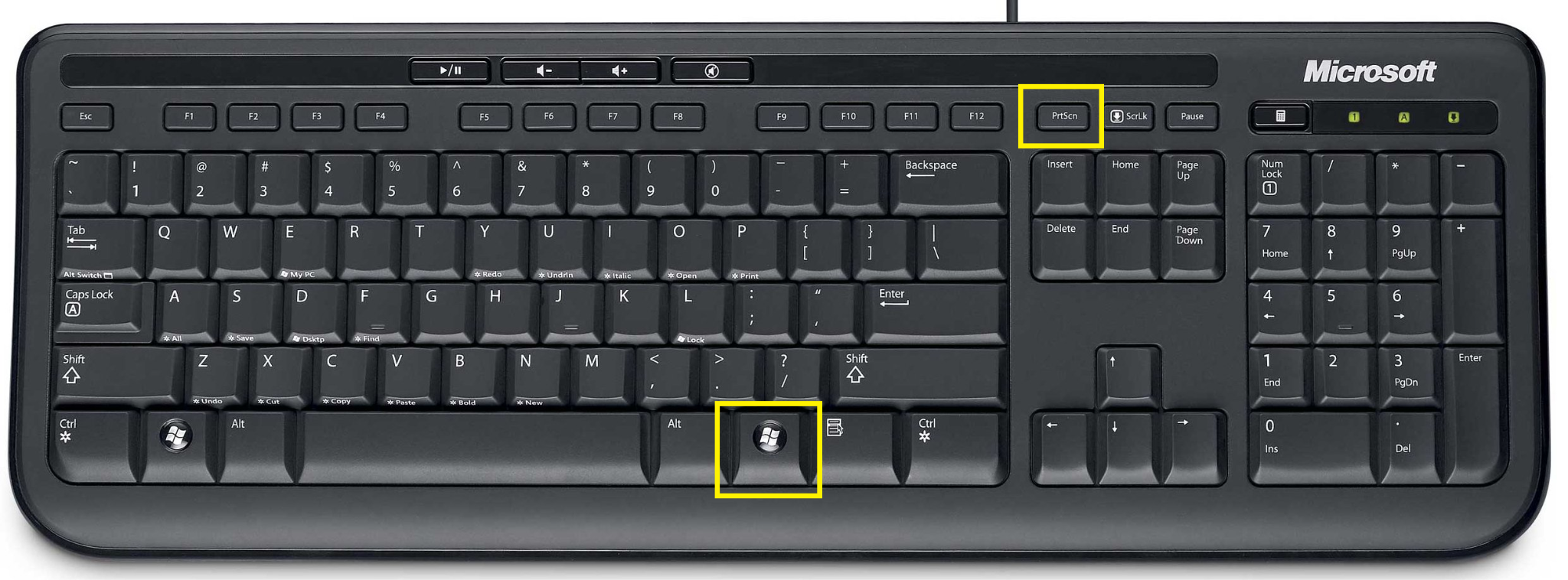
b) You should see a brief animation or a dimming of your screen, indicating that the screenshot has been taken and saved to your computer.
c) To locate the screenshot, go to the "Pictures" folder in your "File Explorer" (Windows + E), and then open the "Screenshots" folder. You should find your captured screenshot in this folder.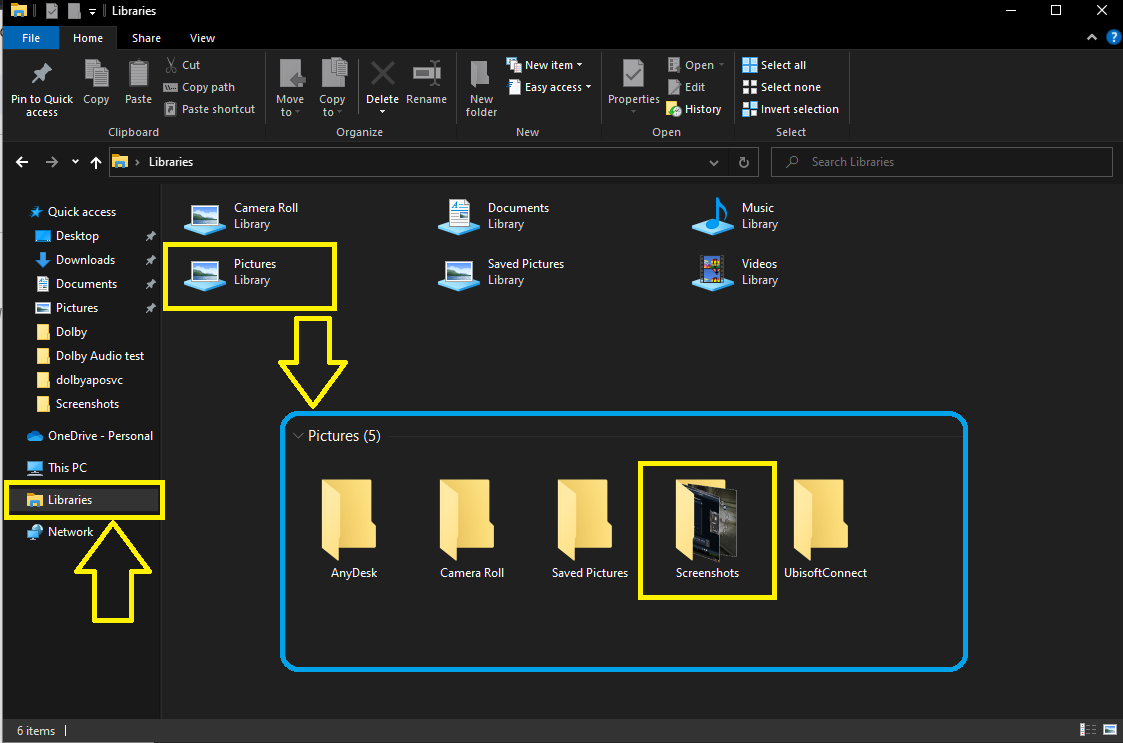
- Taking part of the display screenshots
a) Use the Windows key + Shift + S, this will allow you to select the area of the screen you want to capture using your mouse.
b) After you've selected the area, the screenshot will be automatically saved to the clipboard. You can paste it into an image editing program or document by pressing "Ctrl" + "V" or right-clicking and selecting "Paste".
Trending Blogs
See AllArena Breakout
2025-12-18
How to enable VT
2025-09-01
How to Enable VT on Lenovo Motherboards
2025-09-01
How to Enable VT on HP Motherboards
2025-09-01
How to enable VT on a Gigabyte (AMD) motherboard
2025-09-01