Simplode Suite - Beta Features
Simplode LLC
- Global$0FreeИдти в магазин
Скачать Simplode Suite - Beta Features на ПК с помощью эмулятора GameLoop
Simplode Suite - Beta Features — популярная паровая игра, разработанная Simplode LLC. Вы можете скачать Simplode Suite - Beta Features и лучшие игры Steam с GameLoop, чтобы играть на ПК. Нажмите кнопку «Получить», чтобы получить последние лучшие предложения на GameDeal.
Получите Steam-игру Simplode Suite - Beta Features
Simplode Suite - Beta Features — популярная паровая игра, разработанная Simplode LLC. Вы можете скачать Simplode Suite - Beta Features и лучшие игры Steam с GameLoop, чтобы играть на ПК. Нажмите кнопку «Получить», чтобы получить последние лучшие предложения на GameDeal.
Simplode Suite - Beta Features Возможности
These features currently need more testing before they are ready to join a regular feature pack, so please try them out for free! Honestly, you are the one doing us the favor here, but we hope that the features are useful to you and that you might tell us about any problems you might have or offer suggestions for improvement.
This product is available natively in English, but it has automated translations for most major languages.
Contents: Benchmarking (📈), Red Cyan Desktop3D (\👓/), Settings Optimizer (⚙️💨)
Benchmarking (📈)
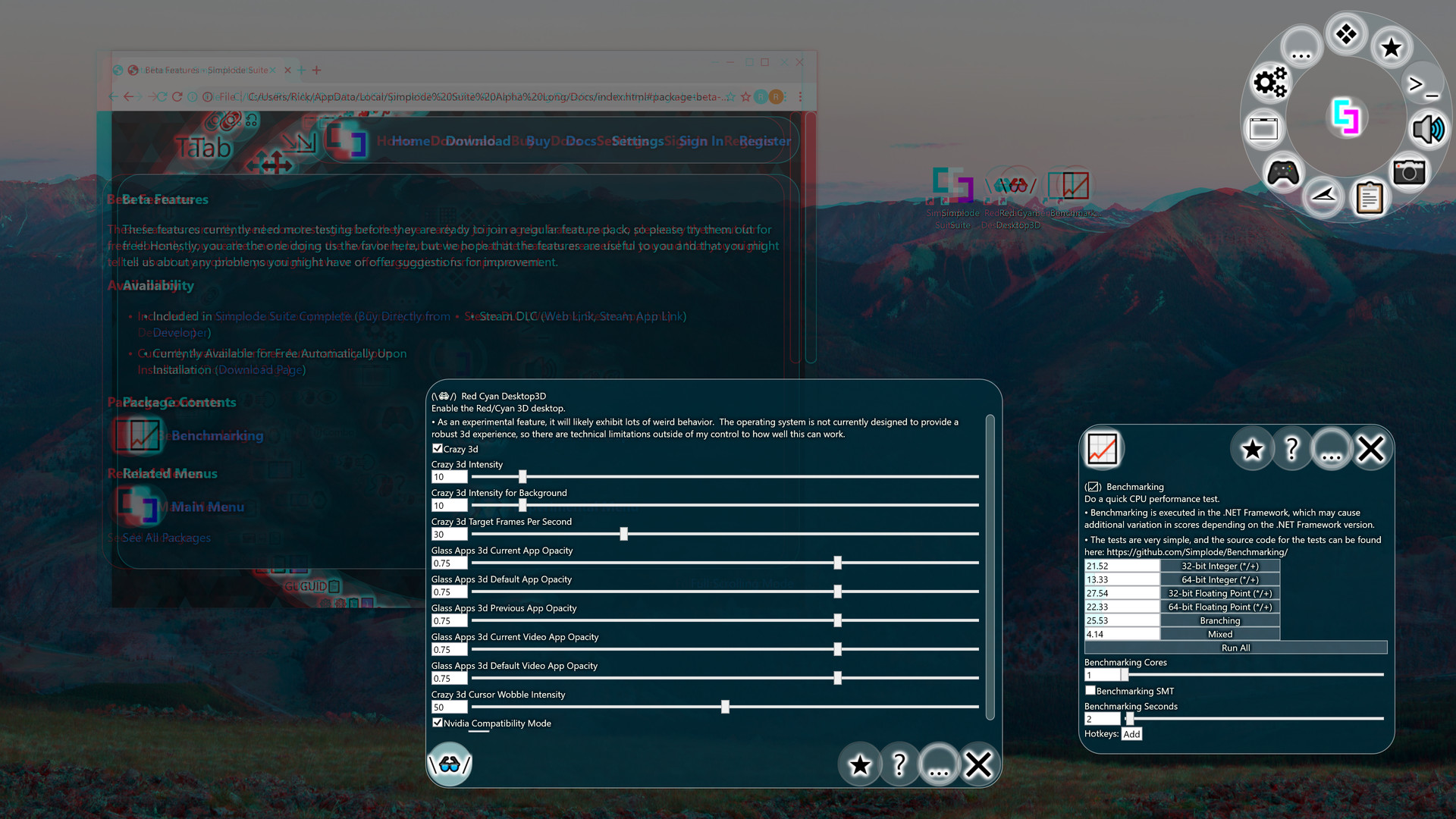
Do a quick CPU performance test.- Benchmarking is executed in the .NET Framework, which may cause additional variation in scores depending on the .NET Framework version.
- The tests are very simple, and the source code for the tests can be found on our website.
- Benchmarking Cores (Default: 1)
- Benchmarking SMT (Default: False)
Uses simultaneous multi-threading (also known as hyper-threading on Intel) when benchmarking.
- Benchmarking Seconds (Default: 2)
Red Cyan Desktop3D (\👓/)
Enable the Red/Cyan 3D desktop.- As an experimental feature, it will likely exhibit lots of weird behavior. The operating system is not currently designed to provide a robust 3d experience, so there are technical limitations outside of my control to how well this can work.
- Crazy 3d (Default: False)
Enables the Red Cyan Desktop 3D feature. Have fun!
- Crazy 3d Intensity (Default: 10)
This setting controls the amount of shift that occurs between the two eyes. Higher values will usually increase the 3d feeling, but at a certain point you will see double and the 3d effect goes away.
- Crazy 3d Intensity for Background (Default: 10)
This setting controls the amount of additional shift for the desktop background.
- Crazy 3d Target Frames Per Second (Default: 30)
Some systems may not be powerful enough to handle this feature at high frame rates, so lower this value can help the feature work properly by reducing the frame rate. The operating system components/drivers were not really designed to be used like this, so even very beefy systems may experience poor performance.
- Crazy 3d V Sync (Default: False)
If enabled, will attempt to synchronize the 3d effect to the refresh rate of your monitor. This will override your target framerate.
- Glass Apps 3d Current App Opacity (Default: 0.75)
Adjusts the transparency of the focused window. Values closer to 1 are less transparent. Values closer to 0 are more transparent.
- Glass Apps 3d Default App Opacity (Default: 0.75)
Adjusts the transparency of the windows which are not already affected by another transparency option. Values closer to 1 are less transparent. Values closer to 0 are more transparent.
- Glass Apps 3d Previous App Opacity (Default: 0.75)
Adjusts the transparency of the previously focused window. Values closer to 1 are less transparent. Values closer to 0 are more transparent.
- Glass Apps 3d Current Video App Opacity (Default: 0.75)
Adjusts the transparency of the focused window, overridden when video is detected. Values closer to 1 are less transparent. Values closer to 0 are more transparent.
- Glass Apps 3d Default Video App Opacity (Default: 0.75)
Adjusts the transparency of the video detected windows which are not already affected by another transparency option. Values closer to 1 are less transparent. Values closer to 0 are more transparent.
- Crazy 3d Cursor Wobble Intensity (Default: 50)
If greater than 0, will proportionally cause the 3D effects to shift according to the cursor position to give a more immersive 3d feel.
- Nvidia Compatibility Mode (Default: True)
The 3D desktop feature has some trouble on Nvidia cards. This option enables some modifications that I added to reduce that trouble.
Settings Optimizer (⚙️💨)
Quickly make some useful adjustments to your operating system.Settings:
- Disable Cortana (Default: False)
Attempts to block Cortana in the operating system start menu.
Works by setting the registry key HKEY_CURRENT_USER\Software\Microsoft\Windows\CurrentVersion\Search\CortanaConsent to DWORD 0.
- Disable Start Menu Web Search (Default: False)
Attempts to block the operating system from automatically performing web searches when searching the start menu.
Works by setting the registery key HKEY_CURRENT_USER\Software\Microsoft\Windows\CurrentVersion\Search\BingSearchEnabled to DWORD 0
This setting appears to have been superceded in the latest versions of the operating system, try the Disable Cortana option instead.
- Disable Connected Web Search (Default: False)
Attempts to block the operating system from automatically performing web searches when searching the start menu.
Works by setting the registry key HKEY_LOCAL_MACHINE\SOFTWARE\Policies\Microsoft\Windows\Windows Search\ConnectedSearchUseWeb to DWORD 0
The setting appears to have been superceded in the latest versions of the operating system, try the Disable Cortana option instead.
- Disable Sliding Lock Screen (Default: False)
If enabled, the lock screen will directly open to the password entry, so you do not have to do an unnecessary slide action.
Works by setting the registry key HKEY_LOCAL_MACHINE\SOFTWARE\Policies\Microsoft\Windows\Personalization\NoLockScreen to DWORD 1
- Disable Shake to Minimize (Default: False)
If enabled, shaking the mouse while moving a window will no longer cause all apps to minimize.
Works by setting the registry key HKEY_CURRENT_USER\SOFTWARE\Microsoft\Windows\CurrentVersion\Explorer\Advanced\DisallowShaking to DWORD 1
Скачать Simplode Suite - Beta Features на ПК с помощью эмулятора GameLoop
Получите Steam-игру Simplode Suite - Beta Features
Simplode Suite - Beta Features — популярная паровая игра, разработанная Simplode LLC. Вы можете скачать Simplode Suite - Beta Features и лучшие игры Steam с GameLoop, чтобы играть на ПК. Нажмите кнопку «Получить», чтобы получить последние лучшие предложения на GameDeal.
Simplode Suite - Beta Features Возможности
These features currently need more testing before they are ready to join a regular feature pack, so please try them out for free! Honestly, you are the one doing us the favor here, but we hope that the features are useful to you and that you might tell us about any problems you might have or offer suggestions for improvement.
This product is available natively in English, but it has automated translations for most major languages.
Contents: Benchmarking (📈), Red Cyan Desktop3D (\👓/), Settings Optimizer (⚙️💨)
Benchmarking (📈)
Do a quick CPU performance test.- Benchmarking is executed in the .NET Framework, which may cause additional variation in scores depending on the .NET Framework version.
- The tests are very simple, and the source code for the tests can be found on our website.
- Benchmarking Cores (Default: 1)
- Benchmarking SMT (Default: False)
Uses simultaneous multi-threading (also known as hyper-threading on Intel) when benchmarking.
- Benchmarking Seconds (Default: 2)
Red Cyan Desktop3D (\👓/)
Enable the Red/Cyan 3D desktop.- As an experimental feature, it will likely exhibit lots of weird behavior. The operating system is not currently designed to provide a robust 3d experience, so there are technical limitations outside of my control to how well this can work.
- Crazy 3d (Default: False)
Enables the Red Cyan Desktop 3D feature. Have fun!
- Crazy 3d Intensity (Default: 10)
This setting controls the amount of shift that occurs between the two eyes. Higher values will usually increase the 3d feeling, but at a certain point you will see double and the 3d effect goes away.
- Crazy 3d Intensity for Background (Default: 10)
This setting controls the amount of additional shift for the desktop background.
- Crazy 3d Target Frames Per Second (Default: 30)
Some systems may not be powerful enough to handle this feature at high frame rates, so lower this value can help the feature work properly by reducing the frame rate. The operating system components/drivers were not really designed to be used like this, so even very beefy systems may experience poor performance.
- Crazy 3d V Sync (Default: False)
If enabled, will attempt to synchronize the 3d effect to the refresh rate of your monitor. This will override your target framerate.
- Glass Apps 3d Current App Opacity (Default: 0.75)
Adjusts the transparency of the focused window. Values closer to 1 are less transparent. Values closer to 0 are more transparent.
- Glass Apps 3d Default App Opacity (Default: 0.75)
Adjusts the transparency of the windows which are not already affected by another transparency option. Values closer to 1 are less transparent. Values closer to 0 are more transparent.
- Glass Apps 3d Previous App Opacity (Default: 0.75)
Adjusts the transparency of the previously focused window. Values closer to 1 are less transparent. Values closer to 0 are more transparent.
- Glass Apps 3d Current Video App Opacity (Default: 0.75)
Adjusts the transparency of the focused window, overridden when video is detected. Values closer to 1 are less transparent. Values closer to 0 are more transparent.
- Glass Apps 3d Default Video App Opacity (Default: 0.75)
Adjusts the transparency of the video detected windows which are not already affected by another transparency option. Values closer to 1 are less transparent. Values closer to 0 are more transparent.
- Crazy 3d Cursor Wobble Intensity (Default: 50)
If greater than 0, will proportionally cause the 3D effects to shift according to the cursor position to give a more immersive 3d feel.
- Nvidia Compatibility Mode (Default: True)
The 3D desktop feature has some trouble on Nvidia cards. This option enables some modifications that I added to reduce that trouble.
Settings Optimizer (⚙️💨)
Quickly make some useful adjustments to your operating system.Settings:
- Disable Cortana (Default: False)
Attempts to block Cortana in the operating system start menu.
Works by setting the registry key HKEY_CURRENT_USER\Software\Microsoft\Windows\CurrentVersion\Search\CortanaConsent to DWORD 0.
- Disable Start Menu Web Search (Default: False)
Attempts to block the operating system from automatically performing web searches when searching the start menu.
Works by setting the registery key HKEY_CURRENT_USER\Software\Microsoft\Windows\CurrentVersion\Search\BingSearchEnabled to DWORD 0
This setting appears to have been superceded in the latest versions of the operating system, try the Disable Cortana option instead.
- Disable Connected Web Search (Default: False)
Attempts to block the operating system from automatically performing web searches when searching the start menu.
Works by setting the registry key HKEY_LOCAL_MACHINE\SOFTWARE\Policies\Microsoft\Windows\Windows Search\ConnectedSearchUseWeb to DWORD 0
The setting appears to have been superceded in the latest versions of the operating system, try the Disable Cortana option instead.
- Disable Sliding Lock Screen (Default: False)
If enabled, the lock screen will directly open to the password entry, so you do not have to do an unnecessary slide action.
Works by setting the registry key HKEY_LOCAL_MACHINE\SOFTWARE\Policies\Microsoft\Windows\Personalization\NoLockScreen to DWORD 1
- Disable Shake to Minimize (Default: False)
If enabled, shaking the mouse while moving a window will no longer cause all apps to minimize.
Works by setting the registry key HKEY_CURRENT_USER\SOFTWARE\Microsoft\Windows\CurrentVersion\Explorer\Advanced\DisallowShaking to DWORD 1
Предварительный просмотр
Информация
Разработчик
Simplode LLC
Последняя версия
1.0.0
Последнее обновление
2020-09-29
Категория
Steam-game
Показать больше
Часто задаваемые вопросы
PC Games Cheaper On Gamedeal | Find The Best Deals of Games Here!
Finding the right place to get the best game deals can prove to be quite a hassle when comparing game prices on multiple sites. However, you can skip through all the trouble by letting Gamedeal handle the price comparisons and grab only the best deal prices for you!
We compare game prices on all the trusted storefronts and list game deals starting with the lowest price possible at the moment. Looking for something more specific? Search it on Gamedeal and find all the best deals and cd keys discount codes to make the most out of your bucks.
Not sure what you looking for? Browse through our massive library of games from different genres to find epic deals for your favorite games from the biggest retailers in the market. Can’t afford the game you are looking for? Make sure to wishlist it and stay up-to-date with all the price changes in the future.
Say Bye to Hefty Game Deals!
Gamedeal is your one-stop shop to find all the best deals from your favorite retailers including Steam, Epic Games, Gamestop, and many more under one roof. Looking for games that cost you nothing? We have got you covered with our free games list that includes free PC and Playstation games.
We help you stay on top of the news with upcoming Steam sales and Gamestop promo codes to ensure you get the game of your choice at the lowest price possible. From old-school classics to modern AAA titles, there is something for everyone to play here.