オートコネクト PC
BIGLOBE Inc.
گیم لوپ ایمولیٹر کے ساتھ PC پر オートコネクト ڈاؤن لوڈ کریں۔
پی سی پر オートコネクト
オートコネクト، جو ڈویلپر BIGLOBE Inc. سے آرہا ہے، ماضی میں اینڈرائیڈ سسٹم پر چل رہا ہے۔
اب، آپ پی سی پر オートコネクト آسانی سے GameLoop کے ساتھ چلا سکتے ہیں۔
اسے GameLoop لائبریری یا تلاش کے نتائج میں ڈاؤن لوڈ کریں۔ مزید غلط وقت پر بیٹری یا مایوس کن کالوں پر نظر نہیں ڈالی جائے گی۔
بس بڑی سکرین پر オートコネクト PC کا مفت میں لطف اٹھائیں!
オートコネクト تعارف
[Important Notice]
Public wireless LAN services "BIGLOBE Wi-Fi" and "Auto Connect" will be discontinued on May 10, 2023.
After the end of the service, you will not be able to use the AutoConnect function, so please uninstall the app and delete the connection settings.
[Precautions for devices with Android 12 or later]
To enable the AutoConnect Wi-Fi connection function, access to "Location" must be set to "Always Allowed" and "Use Accurate Location Information" must be set to ON.
If either is not set, the SSID information cannot be read and the function may not work properly.
If a dialog prompting you to allow access to "location information" is displayed when AutoConnect is started, follow the displayed instructions to make the settings.
Steps to allow access to "location information"
Step 1. Select [Apps & Notifications] or [Apps] on the [Settings] screen of your device.
Step 2. View all apps and select Autoconnect from among them.
Step 3. Tap [Permissions] and select [Location] from the permission items.
Step 4. When the [Location Permission] screen appears, select “Always allow” and turn on “Use precise location information”.
[Precautions for devices with Android 11 or later]
In order to enable the Wi-Fi connection function of AutoConnect, access to "location information" must be set to "always allow".
If it is not set to "always allow", the SSID information cannot be read and the function may not work properly.
If a dialog asking whether to allow access to "location information" is displayed when AutoConnect is started, follow the instructions displayed and set it to "always allow".
In addition to the above, it is possible to operate from the "Settings" of the terminal by the following procedure.
Procedure 1. Select [Apps & Notifications] or [Apps] on the device's [Settings] screen.
Step 2. View all apps and select Autoconnect from among them.
Step 3. Tap [Permissions] and select [Location] from the permission items.
Step 4. When the [Location permission] screen is displayed, select "Always allow".
[Precautions for Android 10 devices]
It is necessary to allow access to "location information" to operate the Wi-Fi connection function of AutoConnect.
If it is not set to "always allow", the SSID information cannot be read and the function may not work properly.
When you start AutoConnect and a dialog asking whether to allow access to "location information" is displayed, select "always allow".
*You can also select "Always allow" from [Settings] → [Apps & notifications] → [Autoconnect] → [Permissions] → [Location information] on your device.
[Precautions for devices with Android 8 or later]
- On Android 8 or later devices, a notification will be displayed in the notification bar when the app is running in the background. The display of the notification bar can also be hidden by changing the OS settings.
Example of procedure for changing settings
Change "Wi-Fi connection control" to OFF in the terminal [Settings] → [Apps and notifications] → [Apps] → [Auto connect] → [Notifications].
* The method may differ depending on the terminal.
・In order to operate the Wi-Fi connection function of Auto Connect, it is necessary to "permit" access to "location information". If it is not set to "Allow", the SSID information cannot be read and the function may not work properly.
[Other notes]
For other notes, please check the AutoConnect support page below.
https://support.biglobe.ne.jp/app_recommend/autoconnect.html
---------------------------------------
Auto Connect is an application that assists in connecting to BIGLOBE Wi-Fi.
[Main functions]
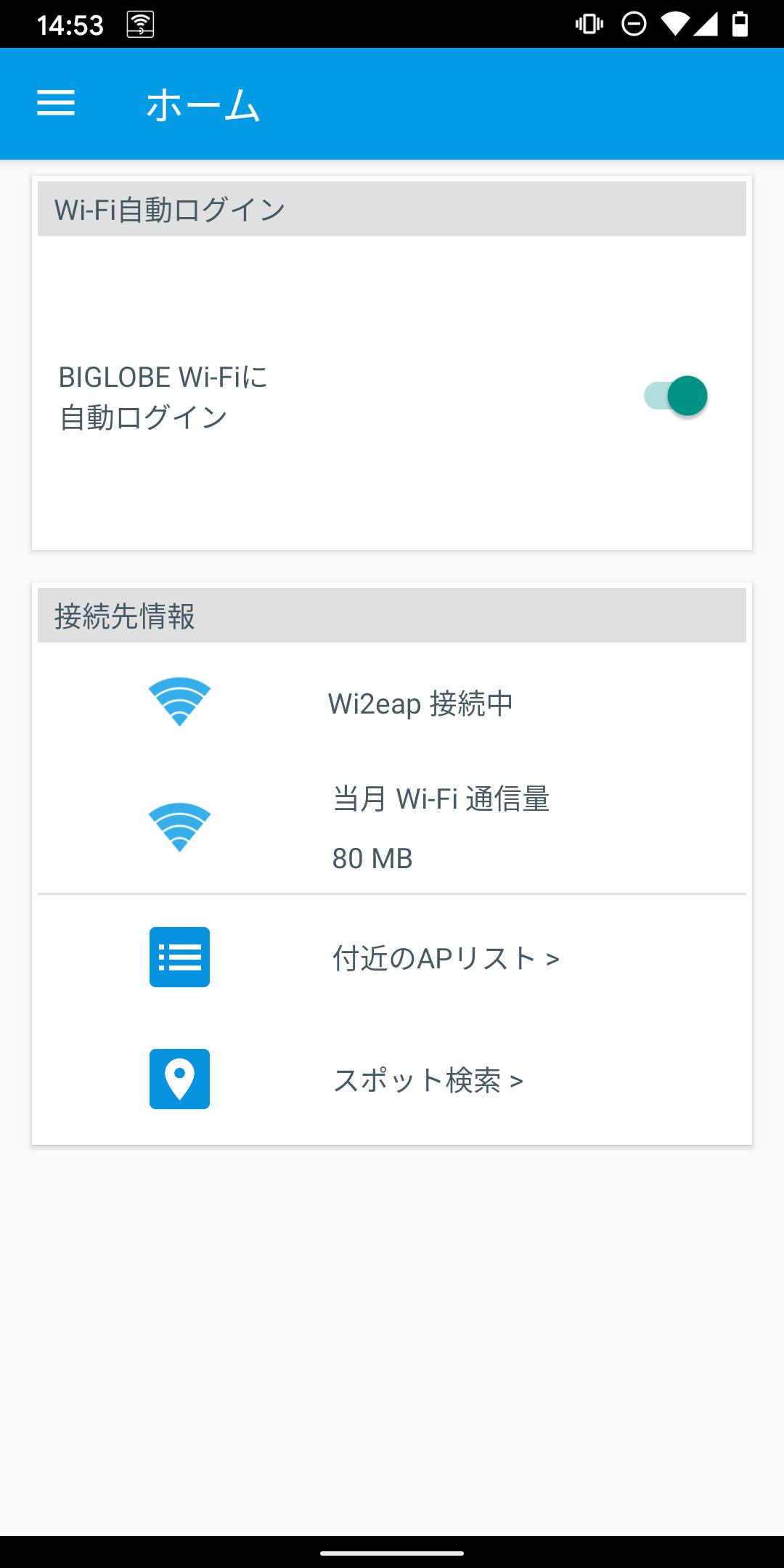
・ Automatic login to "BIGLOBE Wi-Fi"
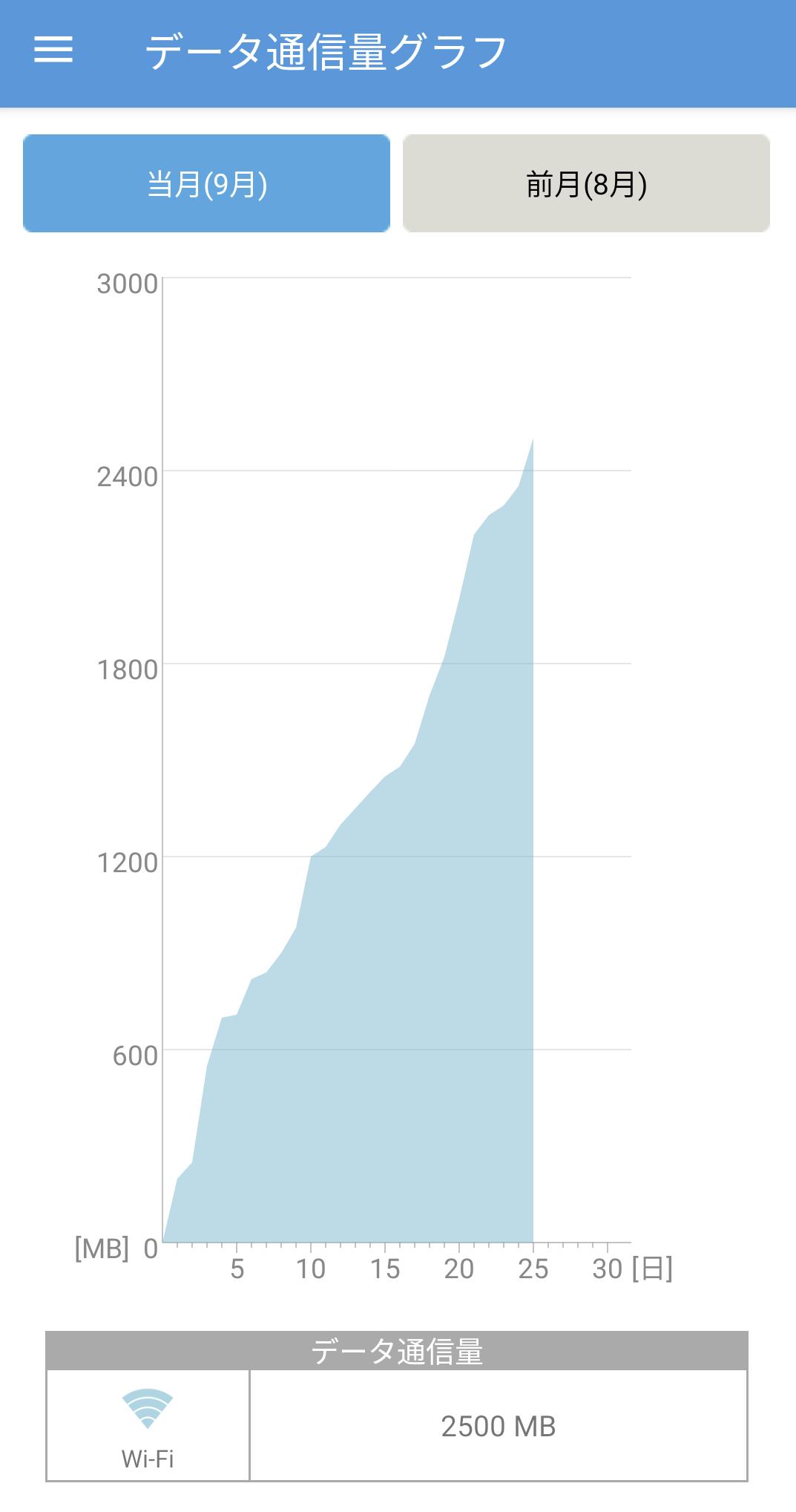
・ Data traffic graph (current month, previous month)
You can easily register and set up the BIGLOBE service "BIGLOBE Wi-Fi" that can be used on the go.
For details on the BIGLOBE service "BIGLOBE Wi-Fi", please check the following page.
https://support.biglobe.ne.jp/wifi/index.html
[Terms of use]
Smartphone/tablet terminal with Android OS
*If you use a SIM card other than BIGLOBE, depending on the SIM card contract plan, you may be charged an expensive packet communication fee by the communication carrier.
Please check the contract plan before using this application.
[Operation verification Android OS]
・Android 6.0 or higher
[Operation procedure after installation]
1. After starting AutoConnect, check the terms of use and tap "Agree".
2. Confirm "Handling of personal information" and tap "Agree".
3. Follow the on-screen instructions to select your login method. (If you use BIGLOBE mobile, please select "Automatic login with BIGLOBE SIM")
4. Check the explanation about the AutoConnect home screen display on the guide screen, and tap [Start].
[BIGLOBE Wi-Fi registration method]
1. From the menu drawer, tap [Settings] → [BIGLOBE Wi-Fi User Registration].
2. Enter the MAC address of your device and tap [OK].
3. Select the BIGLOBE Wi-Fi area to use and tap [Next].
4. Confirm the "BIGLOBE Wi2 Service Terms of Use" and tap [Agree].
5. Confirm the registration result of the device used for BIGLOBE Wi-Fi, and tap [OK].
* For devices with Android 10 or later, follow the instructions on the screen to continue the operation.
* You cannot apply for a paid license with AutoConnect. You need to have a Wi-Fi license and have an available license to perform the above operations.
[How to use]
Please check the following pages for how to use each function.
https://support.biglobe.ne.jp/app_recommend/autoconnect.html#AC_use
[Notes on using BIGLOBE Wi-Fi]
・The SSIDs of the service areas that are currently provided with AutoConnect (latest version) are "Wi2eap", "au_Wi-Fi2", "Wi2premium_club", "0000Wi2", "Wi2_club", "Wi2premium", "Wi2", "Wi2_free", and "wifi_square". .
・If you communicate during the BIGLOBE Wi-Fi switching process, the BIGLOBE Wi-Fi login screen may be displayed. In that case, press the "Back" button on the terminal and perform the operation again.
・If BIGLOBE Wi-Fi is not used for 3 months, BIGLOBE Wi-Fi will not be available. If you wish to use it again, please restart your device or restart the "AutoConnect" app and register again.
・If you cancel the device registration from the web screen, you will not be able to use BIGLOBE Wi-Fi even if the application function is ON.
・If the number of devices that can be used has reached the upper limit, you cannot register devices from this application. Please check the registration status of your device for BIGLOBE Wi-Fi from the web screen.
پیش نظارہ
ٹیگز
اوزارمعلومات
ڈویلپر
BIGLOBE Inc.
تازہ ترین ورژن
8.83
آخری تازہ کاری
2023-04-19
قسم
اوزار
پر دستیاب ہے۔
Google Play
مزید دکھائیں
پی سی پر گیم لوپ کے ساتھ オートコネクト کیسے کھیلا جائے۔
1. آفیشل ویب سائٹ سے گیم لوپ ڈاؤن لوڈ کریں، پھر گیم لوپ انسٹال کرنے کے لیے exe فائل چلائیں۔
2. گیم لوپ کھولیں اور "オートコネクト" تلاش کریں، تلاش کے نتائج میں オートコネクト تلاش کریں اور "انسٹال کریں" پر کلک کریں۔
3. گیم لوپ پر オートコネクト کھیلنے کا لطف اٹھائیں۔
Minimum requirements
OS
Windows 8.1 64-bit or Windows 10 64-bit
GPU
GTX 1050
CPU
i3-8300
Memory
8GB RAM
Storage
1GB available space
Recommended requirements
OS
Windows 8.1 64-bit or Windows 10 64-bit
GPU
GTX 1050
CPU
i3-9320
Memory
16GB RAM
Storage
1GB available space