Simplode Suite - Basic Power Management
Simplode LLC
- MalaysiaRM4.17RM4.17Go to shop
- ArgentinaRM0.89RM0.89Go to shop
- TurkeyRM1.28RM1.28Go to shop
Download Simplode Suite - Basic Power Management on PC With GameLoop Emulator
Simplode Suite - Basic Power Management, ialah permainan wap popular yang dibangunkan oleh Simplode LLC. Anda boleh memuat turun Simplode Suite - Basic Power Management dan permainan wap teratas dengan GameLoop untuk dimainkan pada PC. Klik butang 'Dapatkan' kemudian anda boleh mendapatkan tawaran terbaik terkini di GameDeal.
Dapatkan permainan wap Simplode Suite - Basic Power Management.
Simplode Suite - Basic Power Management, ialah permainan wap popular yang dibangunkan oleh Simplode LLC. Anda boleh memuat turun Simplode Suite - Basic Power Management dan permainan wap teratas dengan GameLoop untuk dimainkan pada PC. Klik butang 'Dapatkan' kemudian anda boleh mendapatkan tawaran terbaik terkini di GameDeal.
Ciri Simplode Suite - Basic Power Management.
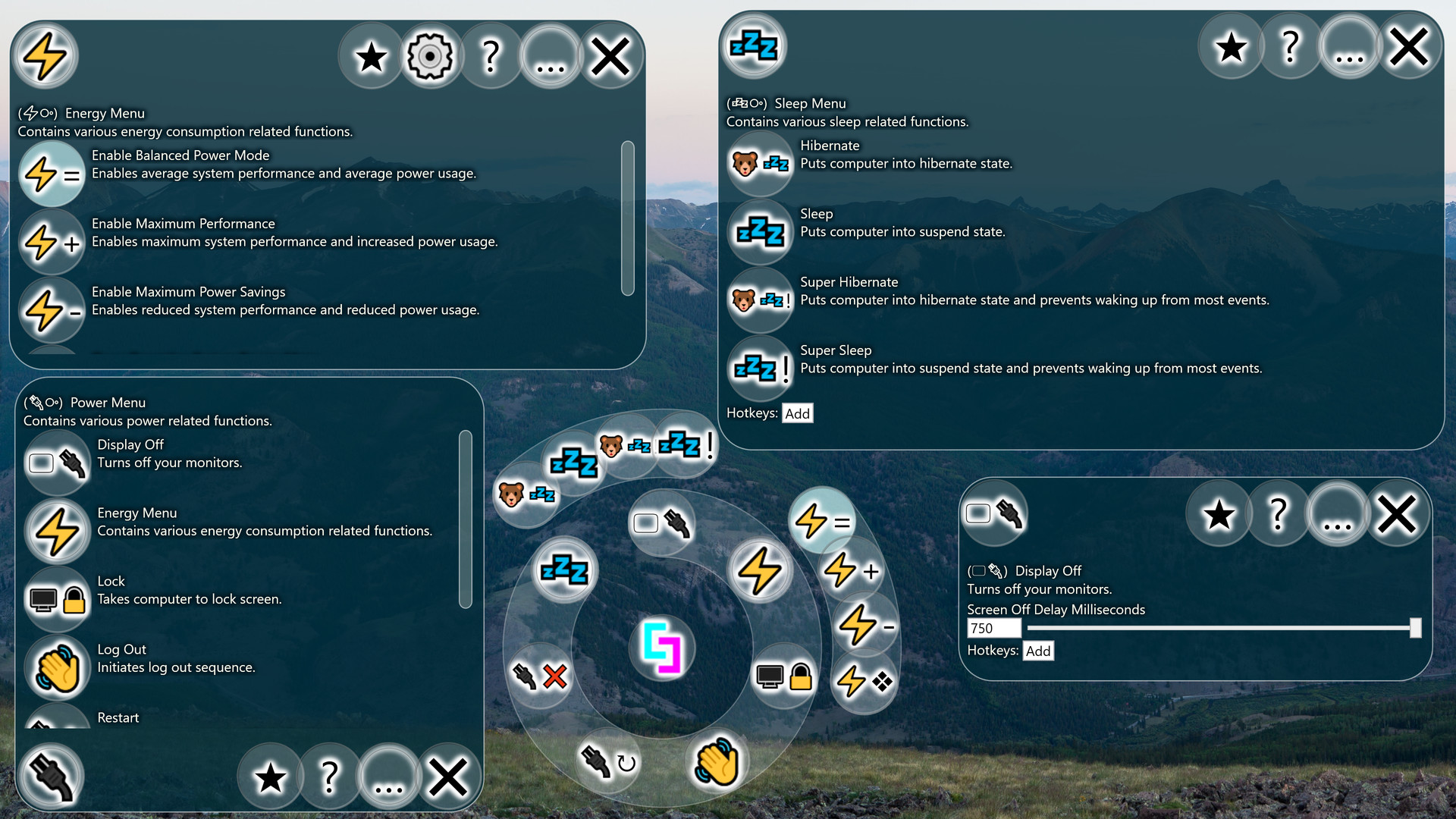
Basic Power Management provides easy access to basic power and session management features. It also includes some slightly more advanced features such as turning off your monitors or putting your computer to sleep or hibernate while ignoring many common wake triggers.
This product is available natively in English, but it has automated translations for most major languages.
Contents: Enable Balanced Power Mode (⚡=), Enable Maximum Performance (⚡+), Enable Maximum Power Savings (⚡-), Open Operating System Energy Menu (⚡❖), Lock (🖥🔒), Log Out (👋), Restart (🔌↻), Shut Down (🔌❌), Hibernate (🐻💤), Super Hibernate (🐻💤!), Sleep (💤), Super Sleep (💤!), Display Off (🖵🔌)
Enable Balanced Power Mode (⚡=)
Enables average system performance and average power usage.Settings:
- Energy Balanced (Default: False)
If enabled, sets your computer's energy setting to the default setting for balanced energy savings. Usually this setting will allow the processor to slow down and save energy during low load, but also reach max speed during high load. This power setting will likely have other side effects, such as changing sleep settings and monitor timeout settings, which you can check out in the operating system's energy menu.
- Lock Energy Setting (Default: False)
On my computer and possibly yours also, some program or operating system service keeps switching my energy settings against my wishes. This setting will switch it back automatically.
Enable Maximum Performance (⚡+)
Enables maximum system performance and increased power usage.Settings:
- Energy Performance (Default: False)
If enabled, sets your computer's energy setting to the default setting for maximum performance. Usually this setting will suggest that the processor run at 100% speed all of the time. In my experience, it will still use reduced energy under reduced loads, but is very aggressive at anticipating load to avoid noticeable speed reductions. This power setting will likely have other side effects, such as changing sleep settings and monitor timeout settings, which you can check out in the operating system's energy menu.
- Lock Energy Setting (Default: False)
On my computer and possibly yours also, some program or operating system service keeps switching my energy settings against my wishes. This setting will switch it back automatically.
Enable Maximum Power Savings (⚡-)
Enables reduced system performance and reduced power usage.Settings:
- Energy Max Savings (Default: False)
If enabled, sets your computer's energy setting to the default setting for maximum energy savings. Usually this setting will limit the maximum speed of the processor, so your computer should feel slower while this is enabled. On the upside, it can increase battery life, reduce energy costs, and put less stress on the processor. Also, some computers have inadequate cooling solutions for their processors, which may result in thermal throttling. Preemptively slowing down the processor can avoid this and actually feel smoother. This power setting will likely have other side effects, such as changing sleep settings and monitor timeout settings, which you can check out in the operating system's energy menu.
- Lock Energy Setting (Default: False)
On my computer and possibly yours also, some program or operating system service keeps switching my energy settings against my wishes. This setting will switch it back automatically.
Open Operating System Energy Menu (⚡❖)
Opens the operating system's energy menu.Lock (🖥🔒)
Takes computer to lock screen.Log Out (👋)
Initiates log out sequence.Restart (🔌↻)
Initiates system restart while indicating that open applications should reopen afterwards.Settings:
- Attempt to Restart Apps (Default: False)
The operating system has rudimentary support for restarting apps during a reboot. If enabled, restarting through the tool will use this method.
Shut Down (🔌❌)
Initiates system shut down.Settings:
- Hybrid Shut Down (Default: True)
If enabled when using the tool to shut down your system, the system will do extra work to speed up the next system start time. If disabled, the shutdown speed may be improved and the next start up may be slower.
Hibernate (🐻💤)
Puts computer into hibernate state.Super Hibernate (🐻💤!)
Puts computer into hibernate state and prevents waking up from most events.Settings:
- Super Hibernate Modify All Power Schemes (Default: True)
If enabled, Super Hibernate will overwrite the wake timers setting in every power scheme to disable all wake timers just before activating and then reenable them after.
Sleep (💤)
Puts computer into suspend state.Super Sleep (💤!)
Puts computer into suspend state and prevents waking up from most events.- After being woken up in the middle of the night many times by the hum of my computer's fans, this feature became a must have. Unfortunately, it can still wake up from some things anyways.
- Super Sleep Modify All Power Schemes (Default: True)
If enabled, Super Sleep will overwrite the wake timers setting in every power scheme to disable all wake timers just before activating and then reenable them after.
Display Off (🖵🔌)
Turns off your monitors.Settings:
- Screen Off Delay Milliseconds (Default: 750)
Keyboard presses and mouse movements can cause the screen to turn back on. This delay allows you to trigger the Screen Off function and then clear your hands before the monitors will go off.
Download Simplode Suite - Basic Power Management on PC With GameLoop Emulator
Dapatkan permainan wap Simplode Suite - Basic Power Management.
Simplode Suite - Basic Power Management, ialah permainan wap popular yang dibangunkan oleh Simplode LLC. Anda boleh memuat turun Simplode Suite - Basic Power Management dan permainan wap teratas dengan GameLoop untuk dimainkan pada PC. Klik butang 'Dapatkan' kemudian anda boleh mendapatkan tawaran terbaik terkini di GameDeal.
Ciri Simplode Suite - Basic Power Management.
Basic Power Management provides easy access to basic power and session management features. It also includes some slightly more advanced features such as turning off your monitors or putting your computer to sleep or hibernate while ignoring many common wake triggers.
This product is available natively in English, but it has automated translations for most major languages.
Contents: Enable Balanced Power Mode (⚡=), Enable Maximum Performance (⚡+), Enable Maximum Power Savings (⚡-), Open Operating System Energy Menu (⚡❖), Lock (🖥🔒), Log Out (👋), Restart (🔌↻), Shut Down (🔌❌), Hibernate (🐻💤), Super Hibernate (🐻💤!), Sleep (💤), Super Sleep (💤!), Display Off (🖵🔌)
Enable Balanced Power Mode (⚡=)
Enables average system performance and average power usage.Settings:
- Energy Balanced (Default: False)
If enabled, sets your computer's energy setting to the default setting for balanced energy savings. Usually this setting will allow the processor to slow down and save energy during low load, but also reach max speed during high load. This power setting will likely have other side effects, such as changing sleep settings and monitor timeout settings, which you can check out in the operating system's energy menu.
- Lock Energy Setting (Default: False)
On my computer and possibly yours also, some program or operating system service keeps switching my energy settings against my wishes. This setting will switch it back automatically.
Enable Maximum Performance (⚡+)
Enables maximum system performance and increased power usage.Settings:
- Energy Performance (Default: False)
If enabled, sets your computer's energy setting to the default setting for maximum performance. Usually this setting will suggest that the processor run at 100% speed all of the time. In my experience, it will still use reduced energy under reduced loads, but is very aggressive at anticipating load to avoid noticeable speed reductions. This power setting will likely have other side effects, such as changing sleep settings and monitor timeout settings, which you can check out in the operating system's energy menu.
- Lock Energy Setting (Default: False)
On my computer and possibly yours also, some program or operating system service keeps switching my energy settings against my wishes. This setting will switch it back automatically.
Enable Maximum Power Savings (⚡-)
Enables reduced system performance and reduced power usage.Settings:
- Energy Max Savings (Default: False)
If enabled, sets your computer's energy setting to the default setting for maximum energy savings. Usually this setting will limit the maximum speed of the processor, so your computer should feel slower while this is enabled. On the upside, it can increase battery life, reduce energy costs, and put less stress on the processor. Also, some computers have inadequate cooling solutions for their processors, which may result in thermal throttling. Preemptively slowing down the processor can avoid this and actually feel smoother. This power setting will likely have other side effects, such as changing sleep settings and monitor timeout settings, which you can check out in the operating system's energy menu.
- Lock Energy Setting (Default: False)
On my computer and possibly yours also, some program or operating system service keeps switching my energy settings against my wishes. This setting will switch it back automatically.
Open Operating System Energy Menu (⚡❖)
Opens the operating system's energy menu.Lock (🖥🔒)
Takes computer to lock screen.Log Out (👋)
Initiates log out sequence.Restart (🔌↻)
Initiates system restart while indicating that open applications should reopen afterwards.Settings:
- Attempt to Restart Apps (Default: False)
The operating system has rudimentary support for restarting apps during a reboot. If enabled, restarting through the tool will use this method.
Shut Down (🔌❌)
Initiates system shut down.Settings:
- Hybrid Shut Down (Default: True)
If enabled when using the tool to shut down your system, the system will do extra work to speed up the next system start time. If disabled, the shutdown speed may be improved and the next start up may be slower.
Hibernate (🐻💤)
Puts computer into hibernate state.Super Hibernate (🐻💤!)
Puts computer into hibernate state and prevents waking up from most events.Settings:
- Super Hibernate Modify All Power Schemes (Default: True)
If enabled, Super Hibernate will overwrite the wake timers setting in every power scheme to disable all wake timers just before activating and then reenable them after.
Sleep (💤)
Puts computer into suspend state.Super Sleep (💤!)
Puts computer into suspend state and prevents waking up from most events.- After being woken up in the middle of the night many times by the hum of my computer's fans, this feature became a must have. Unfortunately, it can still wake up from some things anyways.
- Super Sleep Modify All Power Schemes (Default: True)
If enabled, Super Sleep will overwrite the wake timers setting in every power scheme to disable all wake timers just before activating and then reenable them after.
Display Off (🖵🔌)
Turns off your monitors.Settings:
- Screen Off Delay Milliseconds (Default: 750)
Keyboard presses and mouse movements can cause the screen to turn back on. This delay allows you to trigger the Screen Off function and then clear your hands before the monitors will go off.
Preview
Information
Developer
Simplode LLC
Latest Version
1.0.0
Last Updated
2020-09-17
Category
Steam-game
Show More
FAQs
PC Games Cheaper On Gamedeal | Find The Best Deals of Games Here!
Finding the right place to get the best game deals can prove to be quite a hassle when comparing game prices on multiple sites. However, you can skip through all the trouble by letting Gamedeal handle the price comparisons and grab only the best deal prices for you!
We compare game prices on all the trusted storefronts and list game deals starting with the lowest price possible at the moment. Looking for something more specific? Search it on Gamedeal and find all the best deals and cd keys discount codes to make the most out of your bucks.
Not sure what you looking for? Browse through our massive library of games from different genres to find epic deals for your favorite games from the biggest retailers in the market. Can’t afford the game you are looking for? Make sure to wishlist it and stay up-to-date with all the price changes in the future.
Say Bye to Hefty Game Deals!
Gamedeal is your one-stop shop to find all the best deals from your favorite retailers including Steam, Epic Games, Gamestop, and many more under one roof. Looking for games that cost you nothing? We have got you covered with our free games list that includes free PC and Playstation games.
We help you stay on top of the news with upcoming Steam sales and Gamestop promo codes to ensure you get the game of your choice at the lowest price possible. From old-school classics to modern AAA titles, there is something for everyone to play here.