
PRO Motion Detector Camera PC
Symon Mayn
GameLoopエミュレーターを使用してPCにPRO Motion Detector Cameraをダウンロードします
PRO Motion Detector Camera PC版
開発者Symon MaynからのPRO Motion Detector Cameraは、過去にAndroidsystermで実行されています。
これで、GameLoopを搭載したPCでPRO Motion Detector Cameraをスムーズにプレイできます。
GameLoopライブラリまたは検索結果にダウンロードしてください。 バッテリーに目を向けたり、間違った時間にイライラしたりすることはもうありません。
大画面でPRO Motion Detector CameraPCを無料でお楽しみください!
PRO Motion Detector Camera 序章
Be sure to read the Notes below for general info and advice.
This app comes in 2 parts.. Part 1 is the Camera app (PRO Motion Detector Camera) which will scan any area.
Part 2 is the Viewer app (PRO Motion Detector Viewer) so you can watch what PRO Motion Detector Camera is scanning.
Keep in mind that both apps can run on just one device or 2 (One for camera, one for viewer).
Each time motion is detected a picture is taken, these can be sent via email (disabled for now) if enabled in Settings menu of the PRO Motion Detector Camera app.
This is explained further below in the Settings section.
You can configure features such as how many video frames to send and also the sensitivity of the PRO Motion Detector Camera scanner, depending on the type of surveillance you want. You can get down to ultra sensitive where even a butterfly will trigger the sensor or higher level where only large movements will register.
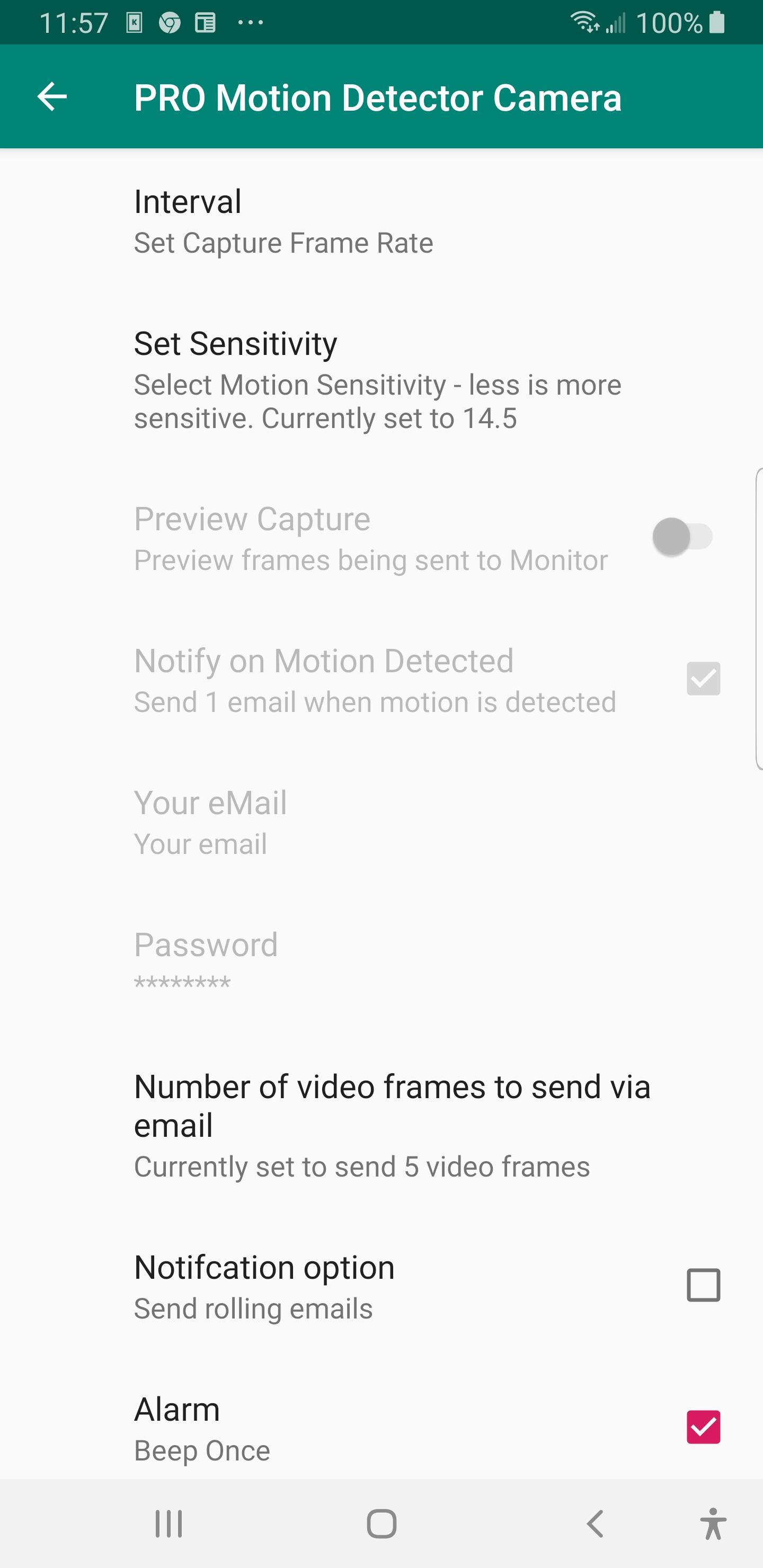
The Settings page of the Camera app is important so here's an explanation of each setting:
* Interval
This is the capture frame rate and is set to 1 by default. It controls how
smooth the video appears in the Viewer app. This should probably be
left at 1 which is the smoothest.
* Set Sensitivity
This controls how sensitive the Camera app is. Values can be from 1
(being the most sensitive to 50 being the least). I would suggest
somewhere between 8 and 15 depending on what kind of movement you
want to monitor. Just experiment with it.
* Notify on Motion Detected
If you want to be emailed when motion is detected, check this box and
then fill out your email address (must be a Gmail account) and
password.
* Number of Video Frames to Send via Email
If for instance this was set to 10, the Camera app would have to register
10 movements before sending the email. The 10 movement frames
would be attachments to the email.This option is only available if you
chose to be notified by email.
* Notification Options
This option will send emails automatically (and without user interaction
if the alarm is disabled) see below for that option.
* Alarm
Here you can select which alarm to use when motion is detected or you
can turn off alarms by unchecking the box.
Permissions:
PRO Motion Detector Viewer
* This app needs to access Storage on the device so it can write temporary image files that were sent by the Camera app. These files are cleaned up after they are displayed in the Viewer app.
PRO Motion Detector Camera
* This app needs to access Storage because it needs to write a single image file to the device. This is then sent to the Viewer app.
* Camera access is required so it can scan a room.
Notes:
After downloading from Play Store for the first time, the first thing you should do is go to the Camera app Settings page and set your preferences.
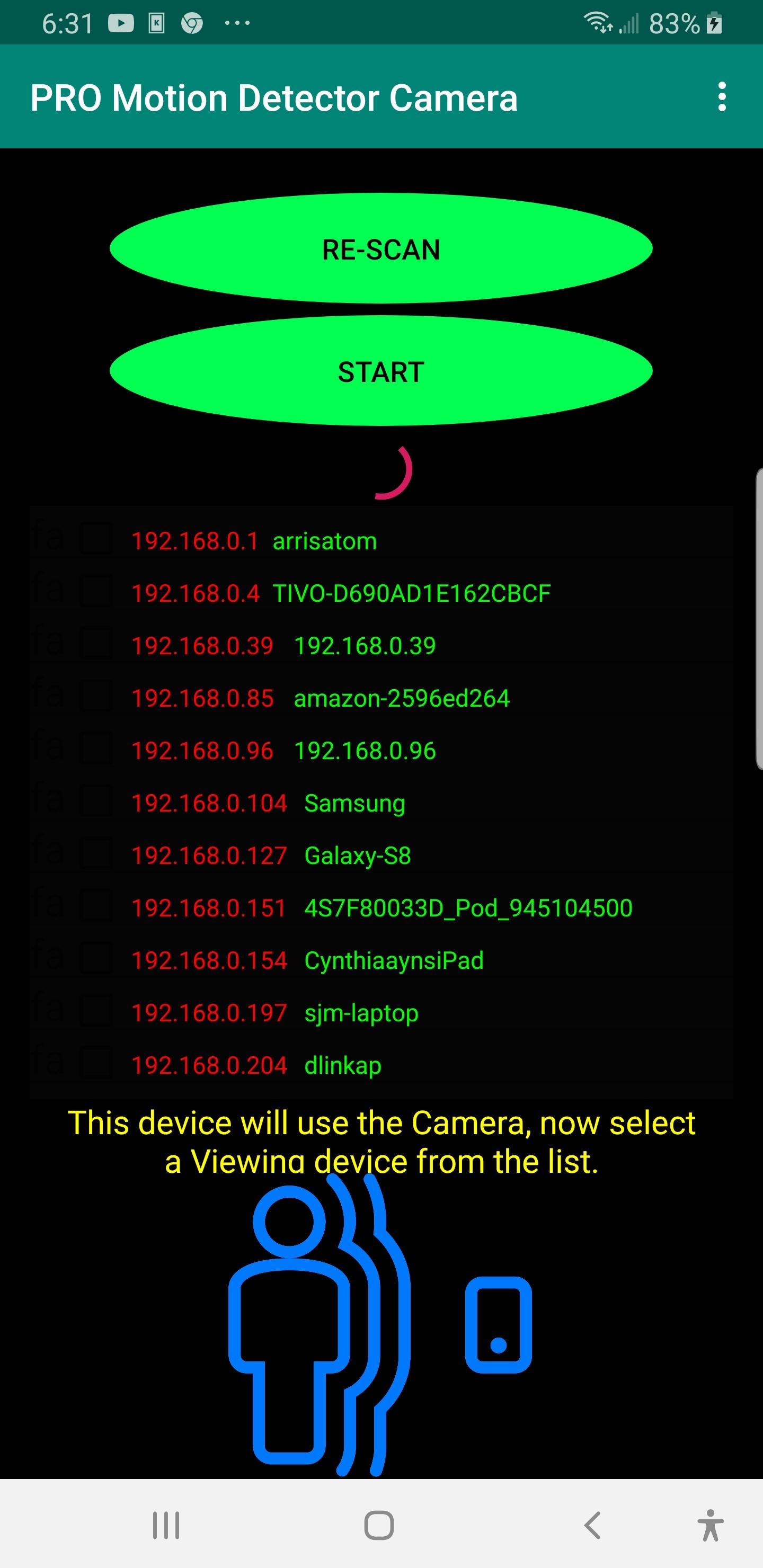
Then go ahead and select a target IP address (device) from the list.
Tap the Start button then run the Viewer app which can be on the same device as the Camera app or a different one.
Once the Viewer app is connected (via the Connect button) to the Camera app you will have a grace period of 30 seconds to position the device that the Camera app is running on before motion monitoring goes live.
You can have both apps running on the same device if you want but it's recommended to use 2 different devices - One to scan the room and the other to see whats going on.
When an email is about to be sent first you will see a red button that simply stops the alarm if one was set. Then 2 buttons will pop up (unless you are using Notification Options as mentioned above).
One button is Reset and Continue which will give you 30 seconds to
position or re-position the Camera app device and then scanning will start up again
The other button is Continue which will keep monitoring immediately
and any further emails or alarms will be disabled.
Contact me if you have any questions or issues.
プレビュー
タグ
House-&情報
デベロッパー
Symon Mayn
最新バージョン
33.0
最終更新
2022-07-31
カテゴリー
House-home
上で利用可能
Google Play
もっと見せる
PCでGameLoopを使用してPRO Motion Detector Cameraをプレイする方法
1. 公式WebサイトからGameLoopをダウンロードし、exeファイルを実行してGameLoopをインストールします
2. GameLoopを開いて「PRO Motion Detector Camera」を検索し、検索結果でPRO Motion Detector Cameraを見つけて、「インストール」をクリックします。
3. GameLoopでPRO Motion Detector Cameraを楽しんでください
Minimum requirements
OS
Windows 8.1 64-bit or Windows 10 64-bit
GPU
GTX 1050
CPU
i3-8300
Memory
8GB RAM
Storage
1GB available space
Recommended requirements
OS
Windows 8.1 64-bit or Windows 10 64-bit
GPU
GTX 1050
CPU
i3-9320
Memory
16GB RAM
Storage
1GB available space