iR XBOX ONE - X & S Remote 電腦版
newdroid
用GameLoop模拟器在電腦上玩iR XBOX ONE - X & S Remote
iR XBOX ONE - X & S Remote 電腦版
來自發行商 newdroid 的 iR XBOX ONE - X & S Remote 能夠在安卓系統上運行。
現在,您可以在電腦上使用 GameLoop 模擬器流暢地玩 iR XBOX ONE - X & S Remote。
在 GameLoop 遊戲庫或搜索結果中下載。 不需要再暢玩遊戲時盯著電池電量或被令人懊惱的來電打斷。
只需在電腦大屏幕上免費下載暢玩iR XBOX ONE - X & S Remote 電腦版!
iR XBOX ONE - X & S Remote 簡介
Multimedia Infrared Remote Controller for Xbox One - Series X & S
YOUR PHONE / TABLET must have an IR transmitter (IR BLASTER)
If you have an Xbox 360 download
iR Remote XBOX ONE - Series X & S is designed to easily control your Blu-ray / DVD movies, streaming video, Netflix, apps, Xbox dashboard, Windows Mediacenter, TV power and volume.
You can immediately control your Xbox One
You do not have to wirelessly sync it to the console.
iR Remote XBOX ONE uses Infrared (IR) technology to communicate with the console. For your remote to best communicate with your console, your phone ir transmitter should be pointed at the front of the console.
Note: The IR receiver is on the console (approximately behind the eject button!)
not the Kinect sensor, which has separate IR cameras and emitters.
The Kinect sensor sends IR signals to your device (TV) to change channels and volume.
OneGuide allows you to change channels on your compatible cable or satellite boxes.
To control your TV power and volume, you’ll need to configure your console to control your TV. You’ll also have to make sure that your Kinect sensor is on because controlling these functions is enabled by the Xbox One Console software and the Kinect sensor.
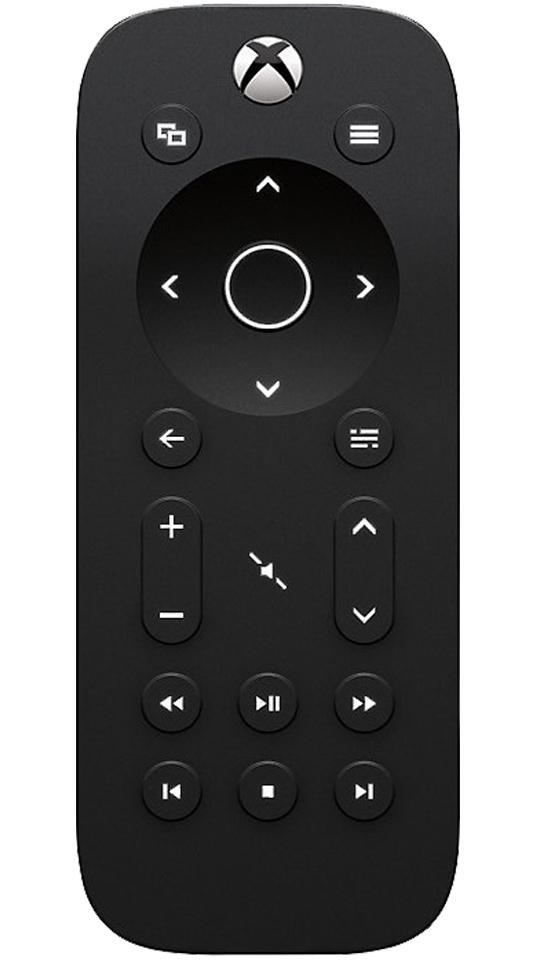
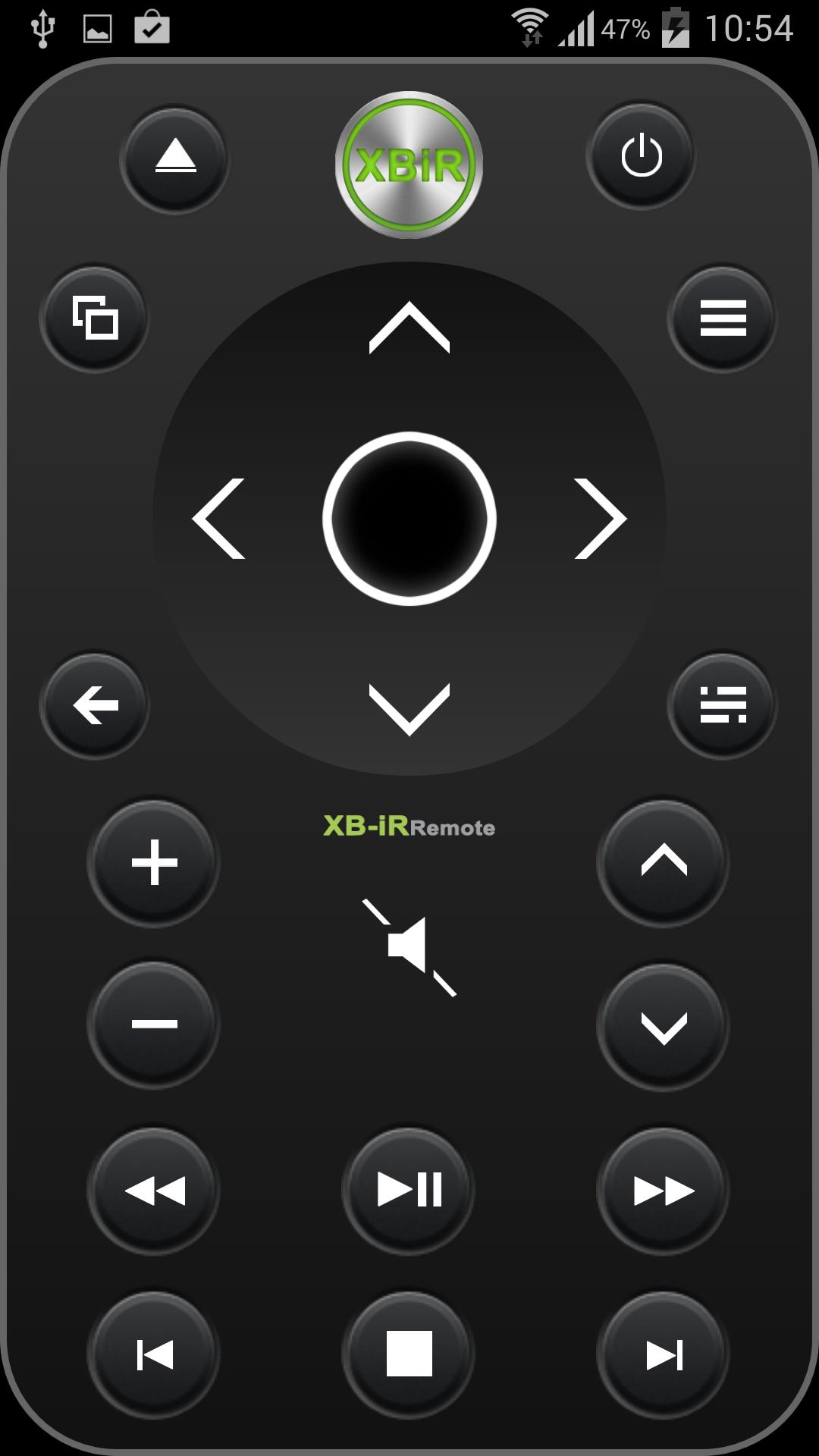
*Power on/Home button.
Will turn your console
*View button.
Works the same as the View button on your Xbox One Controller.
Use this button to focus on an activity in a game or app, like pulling up a map during a role-playing game or accessing the address bar in Internet Explorer.
The functions of this button vary depending on the app or game.
*Menu button.
Similar to the Menu button on your Xbox One controller, you can use this button to access game and app menu options like Settings or Help. This button also works for other commands, including as the Enter key on the Xbox One virtual keyboard.
*Select button.
Used to select an item on screen, similar to pressing the A button on the controller.
*Navigation button.
Used to navigate the dashboard or menus much like the directional pad on the controller.
*Back button.
Pressing this button will take you back to the previous screen.
*OneGuide button.
Opens OneGuide for your TV. If you haven’t set up OneGuide yet, pressing this button will open the setup screen.
*Volume button.
Used to turn volume up and down on your TV.
You must first set up your console to control your TV.
*Channel button.
Used to change channels on your TV.
You must first set up your console to control your TV.
*Mute button.
Used to mute your TV.
You must first set up your console to control your TV.
*Media control buttons.
Media control buttons include Play, Pause, Rewind, Fast Forward, Stop, Next Chapter, and Previous Chapter.
You can use these functions when watching media content on a disc or from an app.
External hardware NOT required and NOT used.
No in app configuration required.
預覽
標籤
工具訊息
開發商
newdroid
最新版本
1.2.1
更新時間
2014-11-02
類別
工具
同時可用
Google Play
更多
如何在電腦上用 GameLoop 玩 iR XBOX ONE - X & S Remote
1. 從官網下載GameLoop,然後運行exe文件安裝GameLoop
2. 打開GameLoop,搜索“iR XBOX ONE - X & S Remote”,在搜索結果中找到iR XBOX ONE - X & S Remote,點擊“安裝”
3. 享受在 GameLoop 上玩 iR XBOX ONE - X & S Remote 的樂趣
Minimum requirements
OS
Windows 8.1 64-bit or Windows 10 64-bit
GPU
GTX 1050
CPU
i3-8300
Memory
8GB RAM
Storage
1GB available space
Recommended requirements
OS
Windows 8.1 64-bit or Windows 10 64-bit
GPU
GTX 1050
CPU
i3-9320
Memory
16GB RAM
Storage
1GB available space