發票存摺:電子發票兌獎、載具歸戶神器 PC
invos Co.,Ltd.
قم بتنزيل 發票存摺:電子發票兌獎、載具歸戶神器 على جهاز الكمبيوتر باستخدام GameLoop Emulator
發票存摺:電子發票兌獎、載具歸戶神器 على الكمبيوتر الشخصي
發票存摺:電子發票兌獎、載具歸戶神器 ، القادم من المطور invos Co.,Ltd. ، يعمل على نظام Android في الماضي.
الآن ، يمكنك لعب 發票存摺:電子發票兌獎、載具歸戶神器 على جهاز الكمبيوتر باستخدام GameLoop بسلاسة.
قم بتنزيله في مكتبة GameLoop أو في نتائج البحث. لا مزيد من الانتباه إلى البطارية أو المكالمات المحبطة في الوقت الخطأ بعد الآن.
ما عليك سوى الاستمتاع بجهاز 發票存摺:電子發票兌獎、載具歸戶神器 على الشاشة الكبيرة مجانًا!
發票存摺:電子發票兌獎、載具歸戶神器 مقدمة
After the unified invoice lottery draw, you can check your prizes with a single tap in the Invoice Savings Book. All invoices for the entire period can be checked at once, including general prizes and exclusive prizes from cloud invoices. After setting up your prize-claiming account, winnings from cloud invoices will be automatically deposited into your bank account. Once mobile barcodes, credit cards, EasyCards, and other electronic devices are registered, invoices from those devices will be automatically transferred and accumulated into monthly expenses based on spending categories. Saving invoices is essentially bookkeeping. Enabling price increase alerts will notify you of any increases in subscription or monthly fees.
The Invoice Savings Book is a unified invoice prize checking and e-invoice management app: it includes prize checking, scanning, winning number lookup, mobile barcode device registration, invoice bookkeeping and spending analysis, regular expense and price increase alerts, and membership card storage. Saving invoices also allows you to participate in invoice reward activities and earn coins by completing tasks.
◤ Uniform Invoice Check: Check your winnings with one click after the draw, and know immediately!
● Cloud Invoice Check: After the draw, tap the check card in "My Invoices" to check all invoices for the current period, including those imported by vehicle, scanned, and manually entered, all at once. General prizes and cloud invoice-specific prizes are displayed separately as checked/unchecked. Winning a cloud invoice-specific prize (NT$1 million, NT$2,000, NT$800, NT$500) will also be indicated. If a cloud invoice-specific prize hasn't been drawn yet, the app will prompt you to check later; you can also "Check the Latest Cloud Invoice-Specific Prizes" in the upper right menu.
● Check Results: The results of each period's invoice check can be created as a shareable image, showing the number of winning invoices and the prize amount. You can share it with friends, whether you won or not.
● Scan to Check Prizes: Point the camera at the QR code on the left side of the e-invoice. The camera continuously scans invoices one after another. For periods with already drawn prizes, scanning automatically checks the prize and immediately displays the result. New invoices are simultaneously saved to the invoice passbook, and transaction details are retrieved. Repeated scans of the same invoice will not save it twice. Invoices from future dates will be blocked.
● Scan Assistance: Flash and sound effects can be turned on/off. Different sound effects are provided for winning, not winning, and no period, along with vibration feedback.
● Traditional Invoices: Switch to "Traditional Invoices" and use text recognition to read the invoice number for prize checking. If the period cannot be determined, you will be prompted to select a period. After checking, you can press "Save Invoice" to go to the manual addition page to save.
● Last Three Digits Check: Enter the last three digits of the invoice using the numeric keypad. The system instantly displays which prize has been won and reads the numbers aloud. You can check a single period or two or more winning periods simultaneously.
● Uniform Invoice Winning Numbers: The draw is held on the 25th of odd-numbered months. The "Winning Numbers" page lists the special prize, grand prize, first prize numbers, and the rules for second to sixth prizes, and displays the prize claim period. Winning numbers can be manually updated.
● Draw Countdown and Reminders: "My Invoices" displays the countdown to the draw in N days. After the draw, entering "My Invoices" will trigger a pop-up message: "Invoice Draw is here! Check your prize now!" Click to check the entire draw period.
● Data Source: Winning numbers and cloud invoice data are from the Ministry of Finance's Electronic Invoice Integration Service Platform, subject to the Ministry of Finance's announcements. The invoice passbook is developed by a private company and does not represent the Ministry of Finance or any government agency.
◤ Prize Redemption: Prizes are automatically deposited into your account, no need to go to convenience stores ◢
● After setting up your prize claim account, the prize money from the winning cloud invoices on your mobile phone and in your account will be automatically deposited into your bank account. You no longer need to go to convenience store kiosks to print and queue for prize redemption.
● Prize Claim Account: Access "Prize Claim Account" from the vehicle page or settings, and complete the Ministry of Finance remittance account setup within the app. Prizes from winning cloud invoices will then be deposited into this account.
● The details page of the winning invoice will display the prize amount and include instructions for claiming the prize on either the vehicle or paper invoice.
◤ Mobile Barcode Vehicle: One barcode manages all invoices ◢
● Mobile Barcode: Log in using your mobile phone number and vehicle verification code (Ministry of Finance password). If you don't have a mobile barcode, you can apply for one through the Ministry of Finance page within the app. Forgot your verification code or need to update it can also be handled within the app. After registration, the barcode will be displayed on the vehicle page.
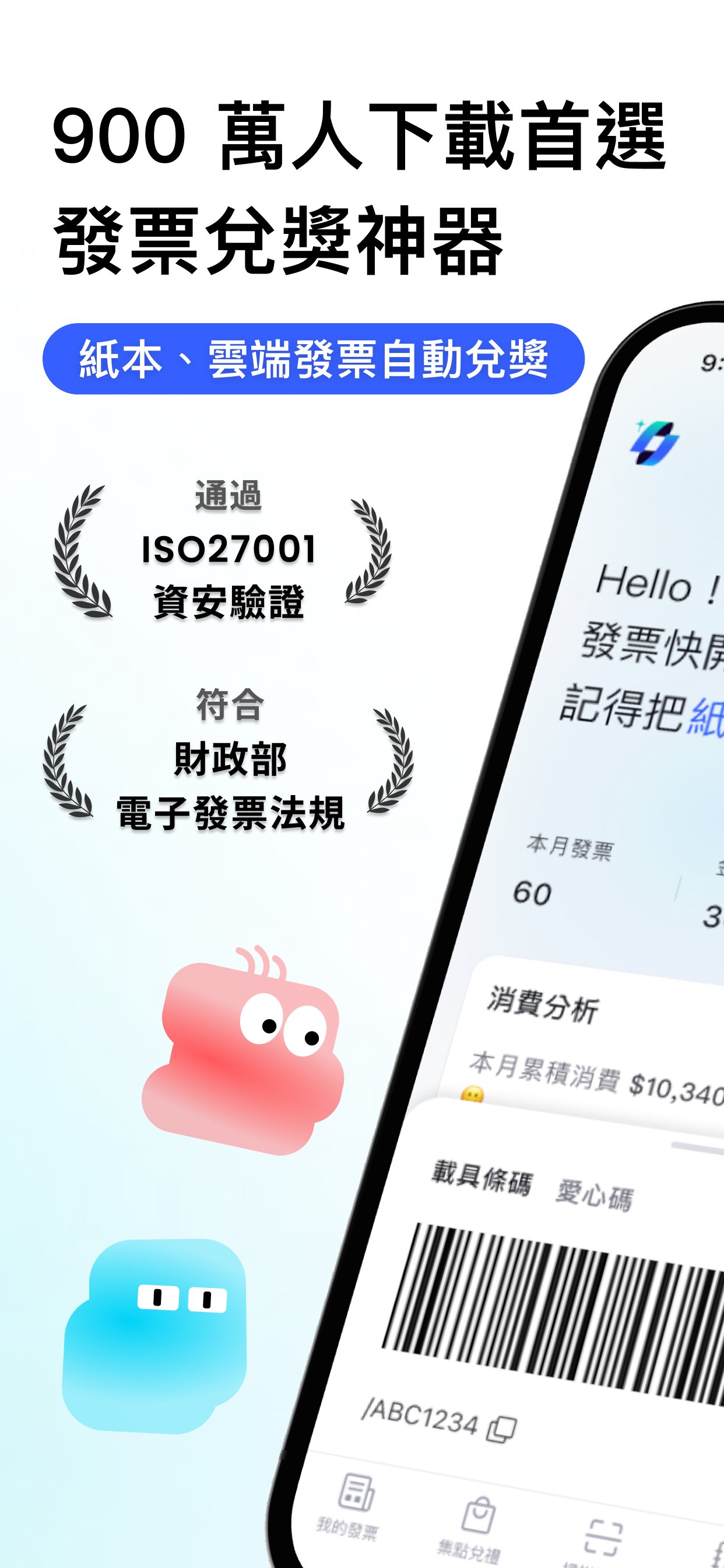
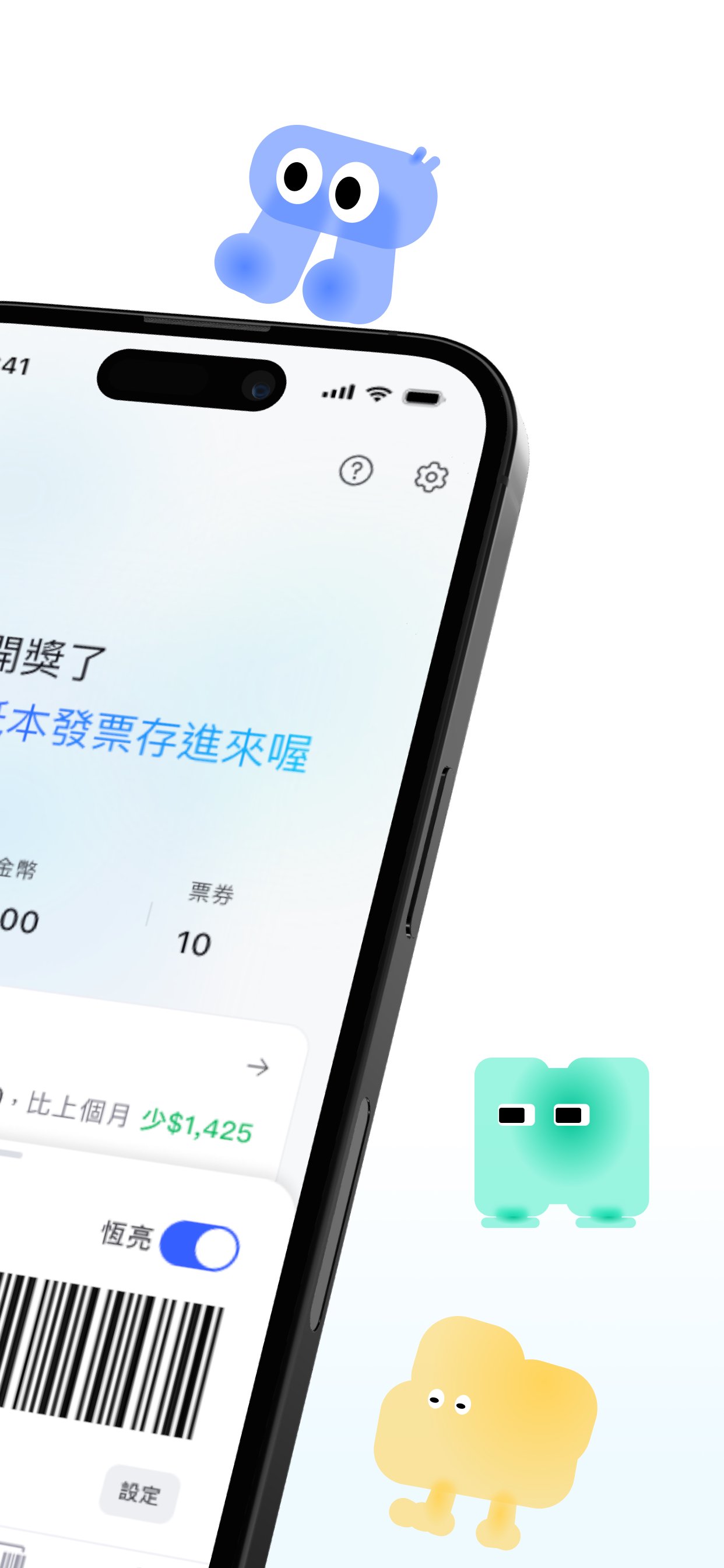
● Show Barcode: The mobile barcode on the vehicle page can be kept constantly lit, automatically adjusting the screen brightness. The barcode can be copied with one click. A barcode panel can also be quickly expanded on the homepage without switching pages.
● Card Account Registration: Credit cards/debit cards, EasyCards, iCash 2.0, online shopping memberships, cross-border e-commerce email accounts, and other card types can all be registered and bound to the Ministry of Finance's website within the app. After registration, invoices from the card will be automatically transferred, eliminating the need for paper invoices.
● Utility Bill Registration: Simply scan the two- or three-segment barcode on the bill within the app to register it.
● Registered Card List: Lists each registered card and account number, along with the number of invoices for each, sorted by number. Clicking on a card will display its invoices.
● New Invoice Notification: When a new card invoice arrives while the app is running, a notification will pop up at the top of the screen: "New invoices arrived in months X-Y!"
● Verification Code Expiration Reminder: If the Ministry of Finance changes the verification code, causing synchronization issues, the app will remind and guide you to update the verification code.
● Invoice Push Notifications: After logging in, you can find the "Invoice Push Notifications" switch in "Settings > Privacy & Notifications." You'll be notified when an invoice is saved. You can turn it on or off freely. If system notifications are not enabled, the app will guide you to enable them in system settings.
● Charity Code and Donated Invoices: The vehicle page can be switched to a charity code barcode, which can be shown directly at checkout. Simply search and set a donation unit first. Donable invoices can also be donated on the details page. Search by unit name or charity code, and it will list the previous donation units. Details and analysis will be retained after donation.
◤ Wear OS Smartwatch ◢
● Information Tile: Add your phone's barcode to the watch's information tile; swipe to display it without opening the app.
● Watch App: Large-screen, automatically brightened display of phone barcodes; tap a membership card to display its barcode or QR code.
◤ Save Invoices and Get Rewards ◢
● Invoice Rewards: Reward activity cards will appear in your "My Invoices" list, showing activity details and rewards such as coins. You can participate and claim your rewards directly from the card upon completion. Activities and rewards vary by tier, and some activities also include a lucky draw.
● Tasks and Coins: View the progress, deadline, and coin rewards for each task on the "Collect Points and Redeem Gifts" task page. Claim your coins upon completion.
● Shop: Use coins to redeem convenience store coupons, Japanese coupons, experience/coupons for various platforms, or app themes. Some items can be claimed directly; each item indicates the remaining quantity and redemption period.
● My Items: Redeemed coupons are stored centrally. Redemption codes and discount codes can be copied with one click, barcodes are always displayed, and redemption status is indicated. You can fill in the recipient information for physical prizes.
● Redemption Codes: Enter the redemption code in "My Items" to claim coupons or coins.
● Friend Invitation Code: Each user has a unique invitation code. New friends enter this code once upon joining, and both parties receive coins upon successful verification.
◤ Invoice Details and Accounting ◢
● Invoice Details: Each invoice displays the purchased items, store, seller's code, vehicle type, and prize status. Item details are not available for invoices without a random code, those with a buyer's code, traditional long invoices, or invoices for certain vehicles; the app will indicate the reason.
● Notes: Each invoice can be edited and notes can be added (maximum 50 characters). Invoices without a store name will have the note as the title.
● Spending Categorization: Invoices are categorized into 6 types: Dining, Home, Transportation, Shopping, Entertainment, and Other. Monthly expenses are accumulated, and saving invoices is equivalent to accounting.
● Search and Filter: Search all invoices by item or store name. Results can be sorted by date or price, and search history is saved and can be cleared at any time. Invoice lists can be filtered by source (vehicle, scanned, manually entered) or 6 consumption categories.
● Manual Addition: For electronic or traditional invoices with damaged barcodes, you can enter the consumption date, invoice number (2 alphanumeric characters plus 8 digits), amount, and random code (optional; details can only be viewed if entered), plus a note. Click "Save and Enter Next" to continuously enter invoices; duplicate invoice numbers will be blocked.
● Recoverable on Different Phones: After logging in, invoices from different vehicles, scanned, and manually entered will be synced to your account. Re-login on a different phone will sync the most recent 7 invoices. Editing or deleting invoices will also sync.
● Invoice Export: Export CSV files for free via the "My Invoices" menu in the upper right corner or in the settings. These files can be opened directly in Excel. You can choose any month from this month or the previous 12 months to remit one month's worth of invoices at once. Choose one of two formats: "All Invoices" includes the date of purchase, invoice number, store, seller's code, item, unit price, quantity, subtotal, total, and remarks; or "Purchase Details Only" includes the date of purchase, item, unit price, quantity, subtotal, and store name. Share and archive or send the invoice after remittance.
● Delete Invoices: You can delete a single invoice or all scanned and manually entered invoices for the current period. Invoices on physical containers will be retained.
◤ Spending Analysis and Budget ◢
● Homepage Spending Summary: Displays the cumulative spending and number of transactions for this month, whether it's more or less than last month, and detailed amounts for each category. Clicking on a category allows you to view monthly details for that category and switch months.
● Budget Management: Set a monthly total budget on the homepage; when you have enough data, you can apply a suggested budget calculated based on recent spending with one click. The homepage displays the month's cumulative spending, remaining balance, and total amount, with alerts based on four spending statuses: just beginning, well-managed, nearing the limit, and overspending.
● Category Analysis: Pie charts show the amount and percentage of spending in six categories: dining, home, transportation, shopping, entertainment, and others.
● Prize Analysis: The cumulative invoice winning probability for a given period, the number of invoices for each category, and the percentage of users who have won the "Invoice Master Index."
● Vehicle Analysis: Number of registered vehicles, the number of invoices for each vehicle type this month, and the "Paper Saving and Environmental Protection Index."
● Store Analysis: Spending amount and frequency for each store, combined with a chart of spending times.
● Time Analysis: Total number of spending times this month, peak spending times, and the number and amount of spending during each time period.
● Invoice System by County: Calculates scores for Taiwan and specific counties/cities based on your invoices; you can switch regions to view the results; some regions are not yet supported.
● Each analysis page has a share button for sharing as an image.
◤ Recurring Expenses: Subscription and Monthly Fee Increase Alerts ◢
● Recurring Expenses: Lists fixed deductions such as cloud storage, AI tools, video/audio services, gym memberships, parking fees, and utilities from vehicle invoices, showing the monthly amount and total for each item.
● Price Increase Alerts: Notifies you when a recurring expense is significantly higher than previous periods, allowing you to decide whether to renew; compares utilities to the same period last year.
● Pre-Bill Reminders: Reminds you before the next billing cycle to confirm whether you have cancelled your subscription or completed payment.
◤ Membership Card Storage ◢
● Add Membership Cards: Choose brands from the merchant card list or add custom cards; card numbers can be scanned with a camera or entered manually, supporting common 1D barcodes and QR codes; custom cards can be photographed or have their designs selected from your album.
● Show Membership Card: The card page displays both the membership card barcode and mobile barcode, which can be shown together at checkout; both can be enlarged by clicking. ● Manage Membership Cards: Record member names, phone numbers, and notes; modify card names; drag and drop to sort card order; delete unused cards; generate shareable screenshots including card images, barcodes, and QR codes to send to family members.
◤ Widgets and Personalization Settings ◢
● 5 Desktop Widgets: Basic barcode, custom barcode, horizontal membership card, vertical membership card, membership card & carrier (carrier can be displayed without opening the app); widget colors switch according to light and dark color modes.
● Custom Widgets: Use your own photo as a background (supports transparent images, under 10MB); zoom and drag to crop with two fingers; barcode text can be selected as black or white; tap the widget to copy the barcode.
● Biometric Lock: When enabled, fingerprint or facial recognition is required to launch the app; device password can also be used for unlocking.
● App Themes: Multiple themes can be redeemed with coins in the store and applied in "My Items"; Dark Mode can be selected to follow the system, or turned on or off.
معاينة
العلامات
تمويلمعلومة
مطور
invos Co.,Ltd.
احدث اصدار
7.54.0
آخر تحديث
2026-11-09
فئة
تمويل
متاح على
Google Play
أظهر المزيد
كيف تلعب 發票存摺:電子發票兌獎、載具歸戶神器 مع GameLoop على جهاز الكمبيوتر
1. قم بتنزيل GameLoop من الموقع الرسمي ، ثم قم بتشغيل ملف exe لتثبيت GameLoop.
2. افتح GameLoop وابحث عن "發票存摺:電子發票兌獎、載具歸戶神器" ، وابحث عن 發票存摺:電子發票兌獎、載具歸戶神器 في نتائج البحث وانقر على "تثبيت".
3. استمتع بلعب 發票存摺:電子發票兌獎、載具歸戶神器 على GameLoop.
Minimum requirements
OS
Windows 8.1 64-bit or Windows 10 64-bit
GPU
GTX 1050
CPU
i3-8300
Memory
8GB RAM
Storage
1GB available space
Recommended requirements
OS
Windows 8.1 64-bit or Windows 10 64-bit
GPU
GTX 1050
CPU
i3-9320
Memory
16GB RAM
Storage
1GB available space