
Text Manager para PC
Umesh Gautam
Descarga Text Manager en PC con GameLoop Emulator
Text Manager en PC
Text Manager, proveniente del desarrollador Umesh Gautam, se ejecuta en el sistema Android en el pasado.
Ahora, puedes jugar Text Manager en PC con GameLoop sin problemas.
Descárgalo en la biblioteca de GameLoop o en los resultados de búsqueda. No más mirar la batería o llamadas frustrantes en el momento equivocado nunca más.
Simplemente disfrute de Text Manager PC en la pantalla grande de forma gratuita!
Text Manager Introducción
Introducing for the First time Text Manager in Android History.
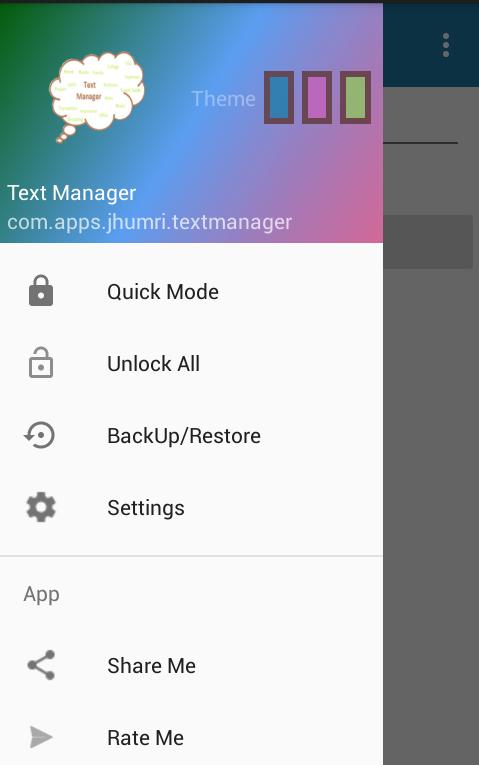
Text Manger is a lite app that allows user to :-
1. Organize the files effectively in a logical way.
2. Create, Delete, Edit, Rename, View the text file.
3. Lock the files with the password.
4. Smart backup and restore of files.
5. Open the text files stored in the phone.
6. Share the text content to other apps easily.
7. Hide the files that are not for daily usage. (On Upgrade free/Purchased)
8. Zoom the text by clicking on the file name on text editor.(New)
9. Search file using the search field. (Hidden files requires the exact search text match with file name.)
10. Use the device inbuilt calculator from a text editor through Option menu.
6. Delete many text files under a same Category.
Details on Features:
1.Organize files: Files from the various areas can be easily organized by creating appropriate category and subcategory.For Example:
Category - Subcategory - File(View and Edit)
Lyrics - Song-1, Song-2, Song-3.... so on. - Lyrics - Song-1, ...
Shopping - Clothes, Kitchen Items, Others.. - Shopping -Others,....
Office - Meeting, Tasks, Important To-do. - Office -Meeting,....
Trip - Visited, Place name,Overall experience. - Trip -Visited ( Places Name List) ....
Movies - To watch, MovieName_Review
Transaction - Money to pay, Money to Receive - Transaction -Money to pay, ....
(Subcategory can again be Sub Categorized if Required by Creating Category in with the same name as Sub Category or any new name as appropriate.) Example:-
Category - Subcategory
Study - Exams,Subjects,College Important dates.
Subjects or (Study Subjects) - Physics, Economics, Fluid Dynamics, Accounts, Computing....
Computing or (Study Subjects Computing) - Introduction ,Unit-1 , Unit -2,
and so on..
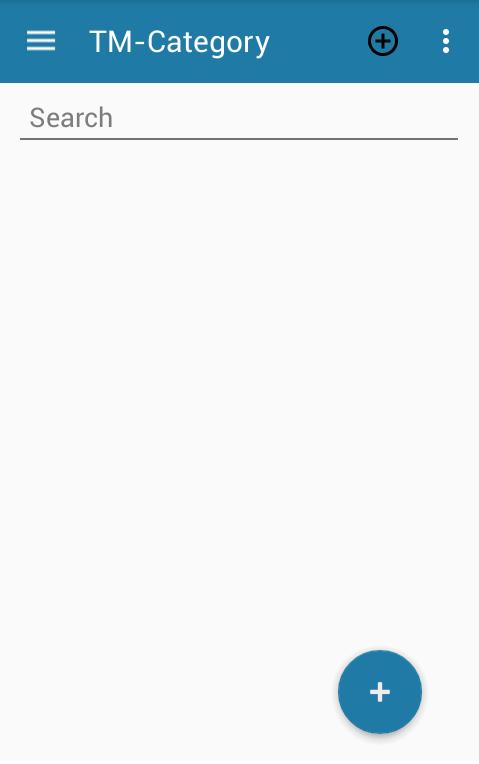
2. Search Files: Searching the files is easier as the files can be arranged in the Logical way as user wants.
For faster access to file in bunch of Categories and Subcategories SEARCH is a best Option.
3.View file: Two simple selection will take to desired file, and User perform a easy view and Copy Operation without even editing a text file.
4. Edit File:Single Click on the text will allow user to edit a file.
5. Saving File: User can save the file by pressing Save to in the Menu or Simply a back from a View will save a text file. If user press the Home button and then Clear the App or App is closed by other ways the File will not be saved. Best practice is to Save a file before leaving app.
6.Undo the Edit: If user lost some text or cleared the text during editing but wants to get original file text. User can get same file by pressing Cancel option in menu.
7. Deleting a File: To delete a file long press the subcategory which holds the file to be deleted. And select Delete to delete a file.
8. Hide a File or Category: To hide a file or category long press on the item to be hidden, and then select Hide.
9. Unhide a file or Category:To Unhide Search the file with exact same name or Select View All on Option menu.
10. Lock a file: To lock a file long press on a category name or subcategory name. Then press lock. User need to set the password before locking the file. IMPORTANT: locked files can be restored only after resetting password which requires security answer in case user forgets the password.
11. Back Up and Restore : User can back up the all files except locked files as well as restore them. IMPORTANT: If the file being restored already exists on the app and is password protected ,then the restore operation of that file will be discarded for the safety of locked file.
8. Exiting App: Select Exit to exit the app in Option menu. go back.
Avance
Etiquetas
ProductividadInformación
Desarrollador
Umesh Gautam
La última versión
3.0.0
Última actualización
2016-07-06
Categoría
Productividad
Disponible en
Google Play
Mostrar más
Cómo jugar Text Manager con GameLoop en PC
1. Descargue GameLoop desde el sitio web oficial, luego ejecute el archivo exe para instalar GameLoop.
2. Abra GameLoop y busque "Text Manager", busque Text Manager en los resultados de búsqueda y haga clic en "Instalar".
3. Disfruta jugando Text Manager en GameLoop.
Minimum requirements
OS
Windows 8.1 64-bit or Windows 10 64-bit
GPU
GTX 1050
CPU
i3-8300
Memory
8GB RAM
Storage
1GB available space
Recommended requirements
OS
Windows 8.1 64-bit or Windows 10 64-bit
GPU
GTX 1050
CPU
i3-9320
Memory
16GB RAM
Storage
1GB available space